CLI
One command, canon. Run it once and work from inside the Cockpit. A second run focuses the window that is already open instead of starting another server.
If canon is not found after installing, canon's tools folder is not on your PATH yet. On macOS and Linux the installer offers to add it to your shell file; answer y, then run the source command it prints (source ~/.zshrc or source ~/.bashrc) or open a new terminal. On Windows, open a new PowerShell window.
Launch and status
canon                    # open the Cockpit for your registered projects
canon <port>             # use a specific port (default 8899)
canon status [--json]    # board and daemon state, sessions by state
canon sessions [--json]  # every live agent session, all projects
canon --version          # print the installed canon version
canon --help             # show the help
Sessions and the daemon
canon wait <id> --until <state>  # block until a session reaches a state
canon stop [--force]             # stop the daemon; --force ends live sessions
canon restart [--force]          # restart the daemon; --force ends live sessions
Update and completion
canon update              # update this install and refresh your projects
canon completion <shell> # print a tab-completion scriptstatus, sessions, stop and restart talk to the running board. None of them needs or prints a session token. To use another default port, set CANON_COCKPIT_PORT.
Wait for a session
canon wait blocks until a session, given by its ticket or scratch id, is in one of the states you name: needs-you, working, done, idle or exited. Use a comma to list more than one.
canon wait t-8716 --until needs-you| Option | Meaning |
|---|---|
--timeout MS |
Give up after this many milliseconds. |
--project PATH |
Look in this project instead of the current one. |
--json |
Print the result as JSON. |
The exit code tells a script what happened: 0 when the state was reached, 1 on timeout, 2 on bad input or when there is no board.
Update canon
canon updateEither way, it ends by running skills.sh refresh on every project registered in the Cockpit, so each project gets the new skills. What happens before that depends on how canon was installed.
A git install (macOS, Linux, Git Bash) fast-forwards your canon folder. It refuses, and changes nothing, if the folder has uncommitted changes, is not on main, or cannot fast-forward. It does not stop a running Cockpit: run canon restart afterwards to start the new version. --force ends live sessions, so Save & End them first if you want to keep their state.
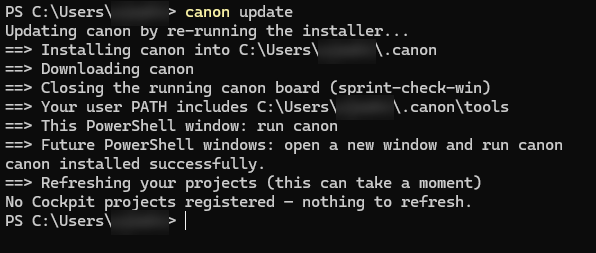
A Windows install without git (the one-line installer) has nothing to fast-forward, so canon update runs the installer again. It downloads canon, closes the running canon board, installs the new files, adds canon's tools folder to your user PATH if it is missing, and refreshes your projects. Type canon to start the Cockpit again.
Uninstall canon
Close the Cockpit window first: a running board blocks the uninstall. Press Ctrl+C in the terminal that runs canon, or close its window, then run the command again.
Start with the dry run. It prints the plan and changes nothing:
canon uninstall --dry-run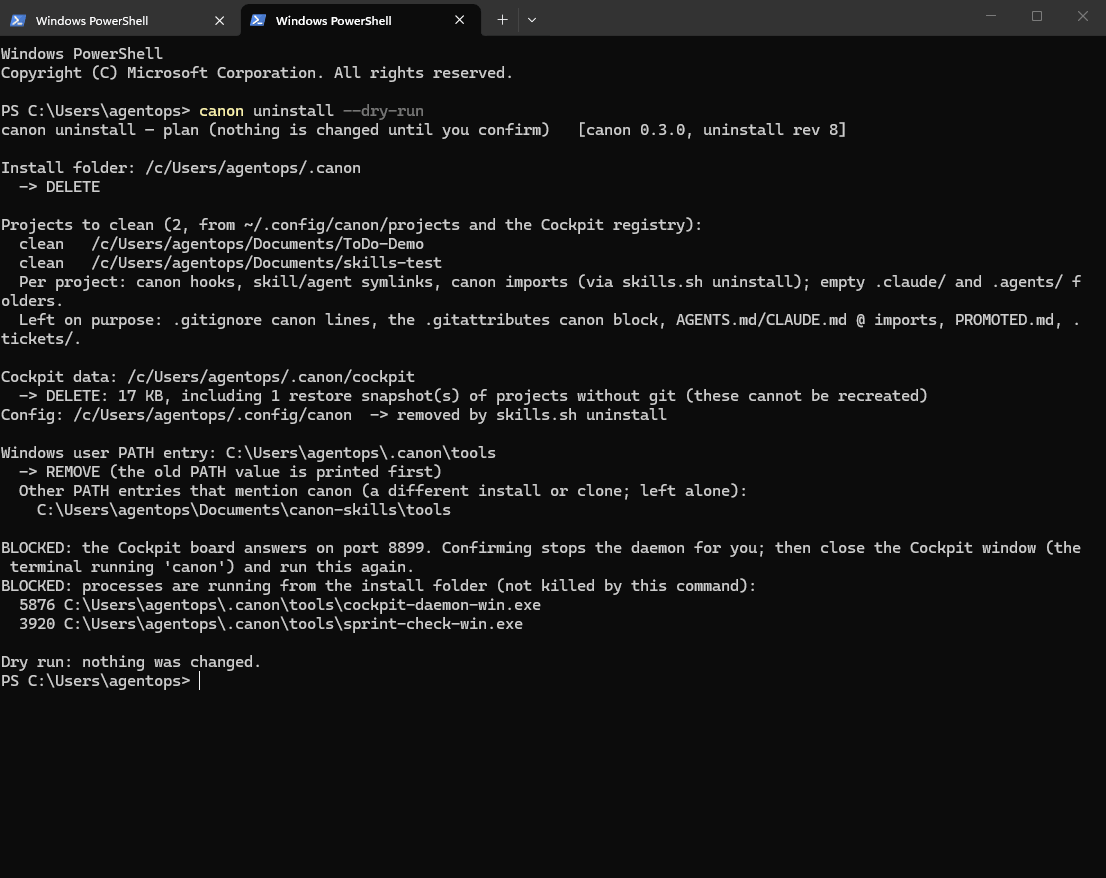
When the plan looks right, run it for real. It prints the same plan, asks, then removes:
canon uninstallWith no terminal and no --yes, it only prints the plan and exits with 2.
| Option | What it does |
|---|---|
--dry-run |
Prints the plan and changes nothing. |
--yes |
Skips the prompt. |
--keep-data |
Keeps the Cockpit data (~/.canon/cockpit: project registrations and the restore snapshots of projects without git) and your skills registrations. |
--force |
Ends live agent sessions through canon stop --force. |
What it does
In order, it:
- stops the Cockpit daemon, refusing while sessions are live unless you pass
--force; - runs
skills.sh uninstallfor every project registered withskills.shor the Cockpit: the git pre-commit hook, legacy Claude Code hooks, skill and agent symlinks, canon imports, the Pi handoff extension and~/.config/canon; - removes the empty
.claude/and.agents/folders it leaves; - deletes the Cockpit data and the install folder;
- on Windows, removes
<install>\toolsfrom your user PATH (the old PATH value is printed first). A running script cannot delete its own folder, so a PowerShell helper deletes it after the command exits and writes the result to a log it names.
Left on purpose: your projects' .gitignore canon lines, the .gitattributes canon block, the @ imports in AGENTS.md and CLAUDE.md, PROMOTED.md and .tickets/. Shell rc lines such as export PATH="$PATH:<install>/tools" are reported with file and line number, never edited.
Safety. The install folder is deleted only when it is a canon install (tools/canon and tools/skills.sh exist, it matches ~/.config/canon/install_path when that file exists, it is not / or your home folder or a parent of it) and, if it is a git clone, when it has no uncommitted or untracked changes, an upstream branch with nothing unpushed, no local branch with commits on no remote, no stash, no linked worktree and no skip-worktree edits. Otherwise it is kept and the exact rm -rf is printed, even with --yes. A process running from the install folder blocks the run; it is never killed.
After --keep-data
Checked on Windows 11 in PowerShell: the install folder held only cockpit/ with projects.json, the project's pre-commit hook was gone, and canon's entry was gone from the user PATH. After a reinstall the Cockpit lists the project again with its description and date added, but its skills are not linked. Run canon update: it re-links skills for the projects whose AGENTS.md still lists them, and uninstall leaves AGENTS.md alone.
What was tested
macOS, and Windows 11 from PowerShell. cmd (canon.cmd) and Git Bash run the same bash script but were not tested on a real machine. Linux follows the macOS path and is untested.
Tab completion
Add one line to your shell's startup file, then run source on that file or open a new terminal for it to take effect:
# bash, in ~/.bashrc
eval "$(canon completion bash)"

# zsh, in ~/.zshrc, after compinit
eval "$(canon completion zsh)"

# PowerShell, in $PROFILE
canon completion powershell | Out-String | Invoke-Expression