Keyboard
The Cockpit works with the mouse, and always will. The keyboard shortcuts are optional: they switch tabs, show two tabs at once, open Projects or Admin, open a Terminal, and answer a few questions without reaching for the mouse.
How the shortcuts work
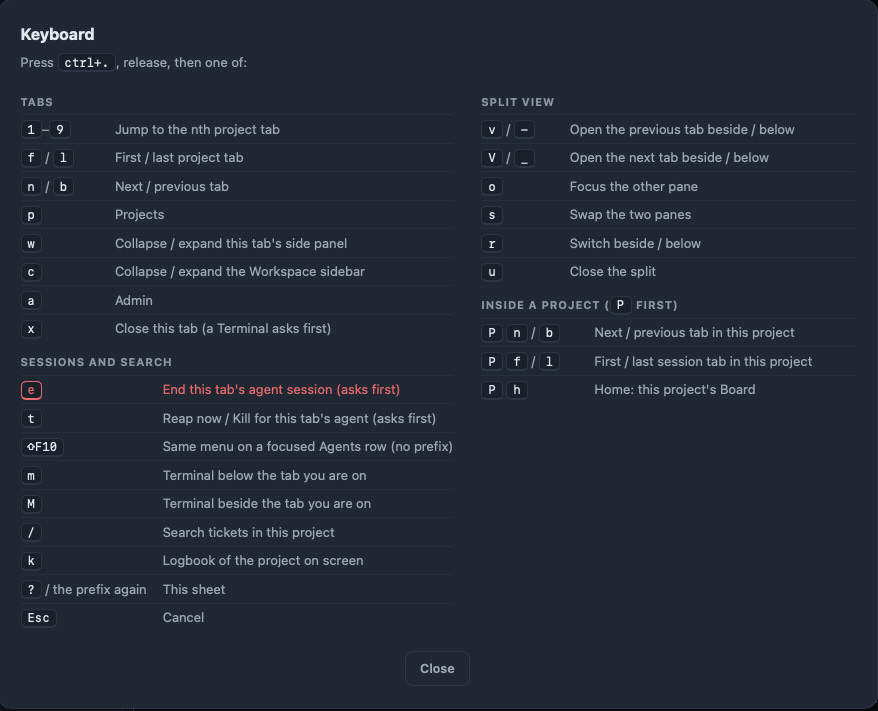
Every shortcut is two steps. First press the prefix, Ctrl+.: hold Ctrl and press the full stop, then let go of both. Then press one key. On a Mac the prefix uses the Control key, not Cmd. It has been tried on macOS in Safari and Chrome and on Windows in Edge. Not tried yet: Windows in Chrome or Firefox, and keyboards that use AltGr.
A small hint appears to remind you of the keys. You have 1.5 seconds for the second key. If you wait longer, or press Esc, the shortcut is cancelled and nothing happens.
The prefix works from any page of the Cockpit: Projects, Admin, a ticket's board and its terminal. To see the list without looking it up here, press Ctrl+. then ? (or the prefix again), or click the keyboard button at the bottom of the sidebar.
Learn these first
| Keys | What it does |
|---|---|
1 to 9 |
Jump to the nth project tab. Projects does not count: 1 is the first project tab. A number with no tab does nothing. |
n / b |
Next / previous tab. It wraps around, and Projects is part of the cycle. |
p |
Projects. |
a |
Admin. |
? |
Show the Keyboard sheet. Pressing the prefix again does the same. |
The rest, by task
| Task | Keys | What it does |
|---|---|---|
| Tabs | f / l |
First / last project tab. |
| Tabs | w |
Fold or unfold the open tab's side panel. With no tab open, it folds the Workspace sidebar. |
| Tabs | c |
Fold or unfold the Workspace sidebar. |
| Tabs | x |
Close the open session tab (a Scratch or a ticket) and land on the project's board. With none open, it closes the project tab. Projects cannot be closed, and a live Terminal asks first. |
| Sessions | e |
End the open tab's agent session. It only opens the same Save & End question as the End Session button, and nothing happens if the tab has no live session. See Agents and sessions. |
| Sessions | t |
Open the Reap now / Kill menu for the open tab's agent. It asks before it acts. |
| Sessions | Shift+F10 |
The same menu for the row that has focus under Agents in the sidebar. No prefix. |
| Terminal | m / M |
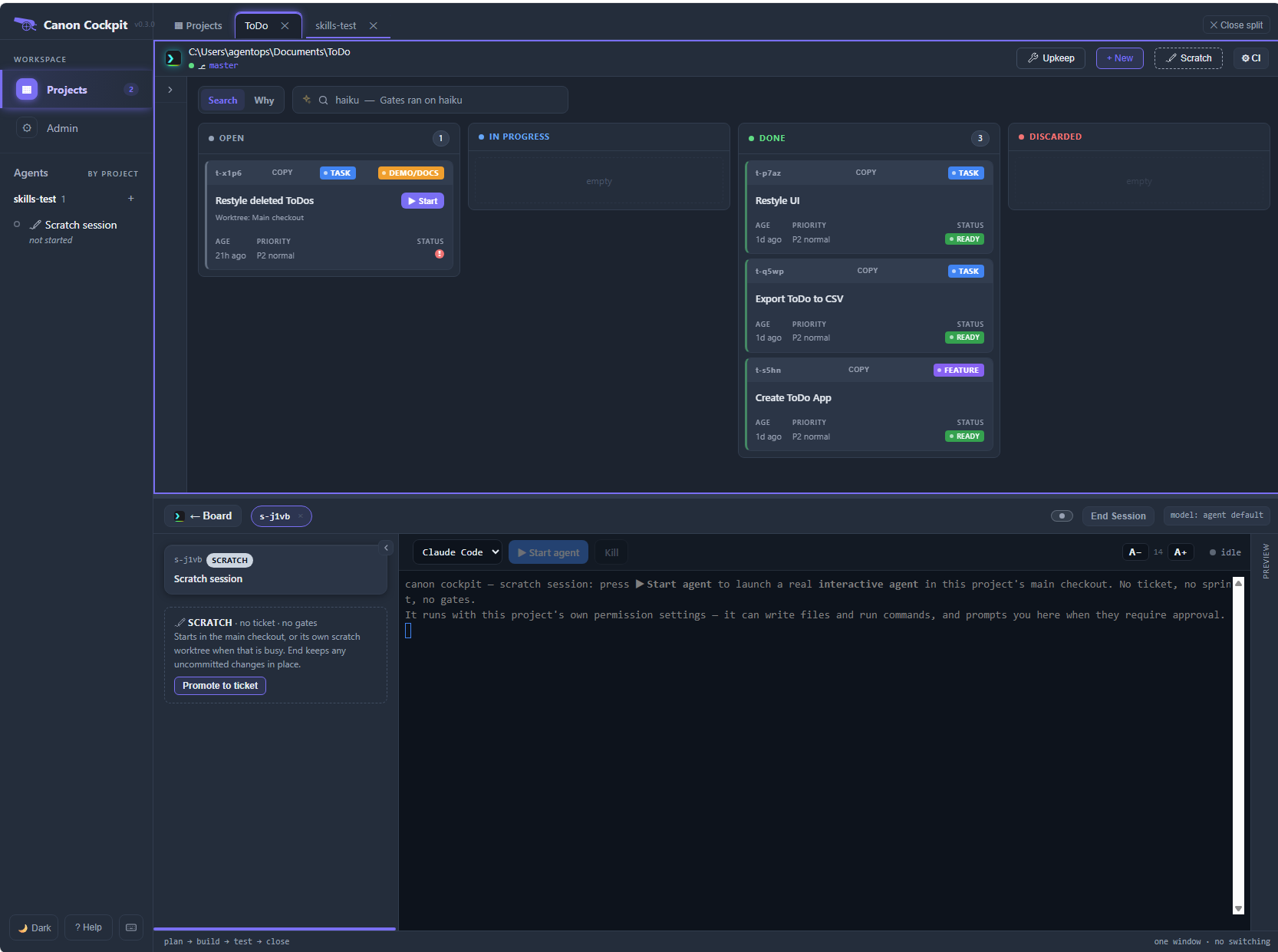
Open a Terminal in a pane below (m) or beside (M) the tab you are on, so the board or session stays on screen. |
| Split view | v / - |
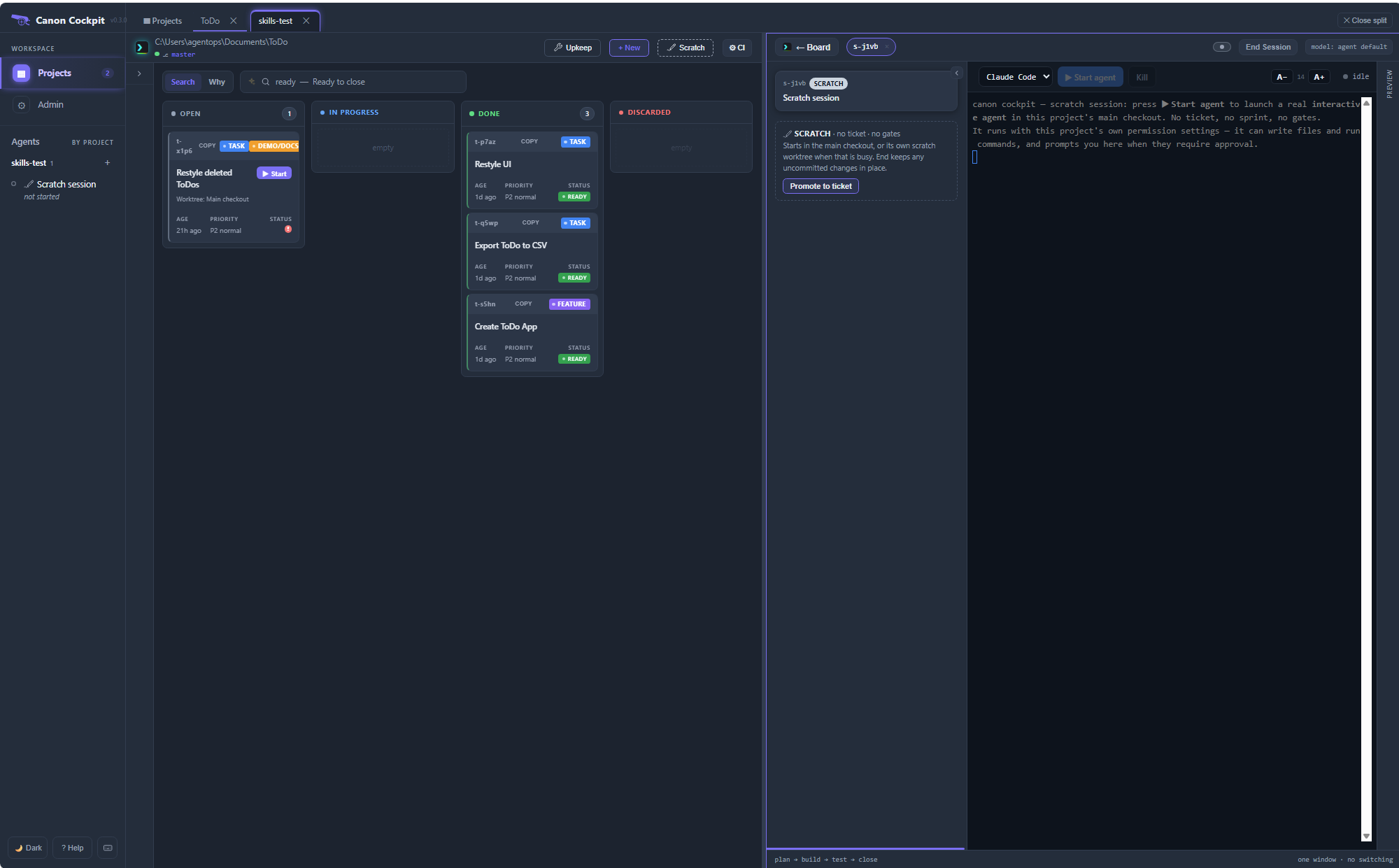
Open the previous tab beside (v) or below (-) the open tab. |
| Split view | V / _ |
Open the next tab beside (V) or below (_) the open tab. |
| Split view | o |
Move focus to the other pane. A blue border marks the active pane. |
| Split view | s |
Swap the two panes. |
| Split view | r |
Switch the split between beside and below. |
| Split view | u |
Close the split. You are left with one pane showing the tab that was active, and both tabs stay open. While split, a Close split button sits at the top right. |
| Search | / |
Go to the ticket search of the open project, ready to type. |
| Logbook | k |
Open the Logbook of the project on screen (in a split, the focused pane's). With no project tab on screen it says Open a project tab first. |
| Cancel | Esc |
Cancel the shortcut you started. |
Inside a project
A project tab can hold more than its board: a session tab for a ticket or a Scratch, and a Terminal. To move between them, press the prefix, then capital P, then one key. Lowercase p still opens Projects.
| Keys | What it does |
|---|---|
P n / P b |
Next / previous tab in this project. The board and its Terminal pane count as one stop. |
P f / P l |
First / last tab in this project. |
In a split, each pane shows its own project tab with its own terminal, so two sessions can run side by side, such as one Scratch session in each project. See Agents and sessions.
When the keys do nothing
The keys are ignored while you type in a text field and while a form or dialog is open, such as New Ticket, a ticket's detail window or the commit window, so typing is never taken from you. The question that End Session asks is the exception: it does not block them.
In a terminal, only the prefix and the one key after it are kept from the terminal. Ctrl+C and every other key still reach it.
Change the prefix
If Ctrl+. clashes with something on your computer, such as another app or an input method, choose another prefix.
The prefix is always Ctrl plus one punctuation key that you press without Shift, such as ;. It cannot be a letter or a digit, more than one key, or a combination with Alt or Cmd. If the value is not valid, canon ignores it without any message and keeps Ctrl+.. A key that needs Shift (on many keyboards ? or :) is the one exception: canon accepts it, but it can never work as the prefix.
In your browser's console, on the Cockpit page, run this to use Ctrl+;:
localStorage.setItem('canon-prefix', 'ctrl+;')It takes effect on the next key press, and the Keyboard sheet shows the prefix in use. The setting belongs to that browser.
Go back to the default
If the new prefix does nothing, or clashes with something else, run this in the same console:
localStorage.removeItem('canon-prefix')It takes effect on the next key press, with no reload. An invalid value never needs this, because canon ignores it and keeps Ctrl+.. Another browser has its own setting and keeps Ctrl+. until you change it there.