Open the Cockpit as an app
The Cockpit is a web page that canon serves on your own machine, so in a browser it has the browser's tab strip and address bar around it. If you would rather not see those, Edge on Windows and Safari on a Mac can install the Cockpit as an app that runs in its own window.
Edge on Windows
This was tried on Windows 11 with Edge.
- With canon running, open the Cockpit in Edge.
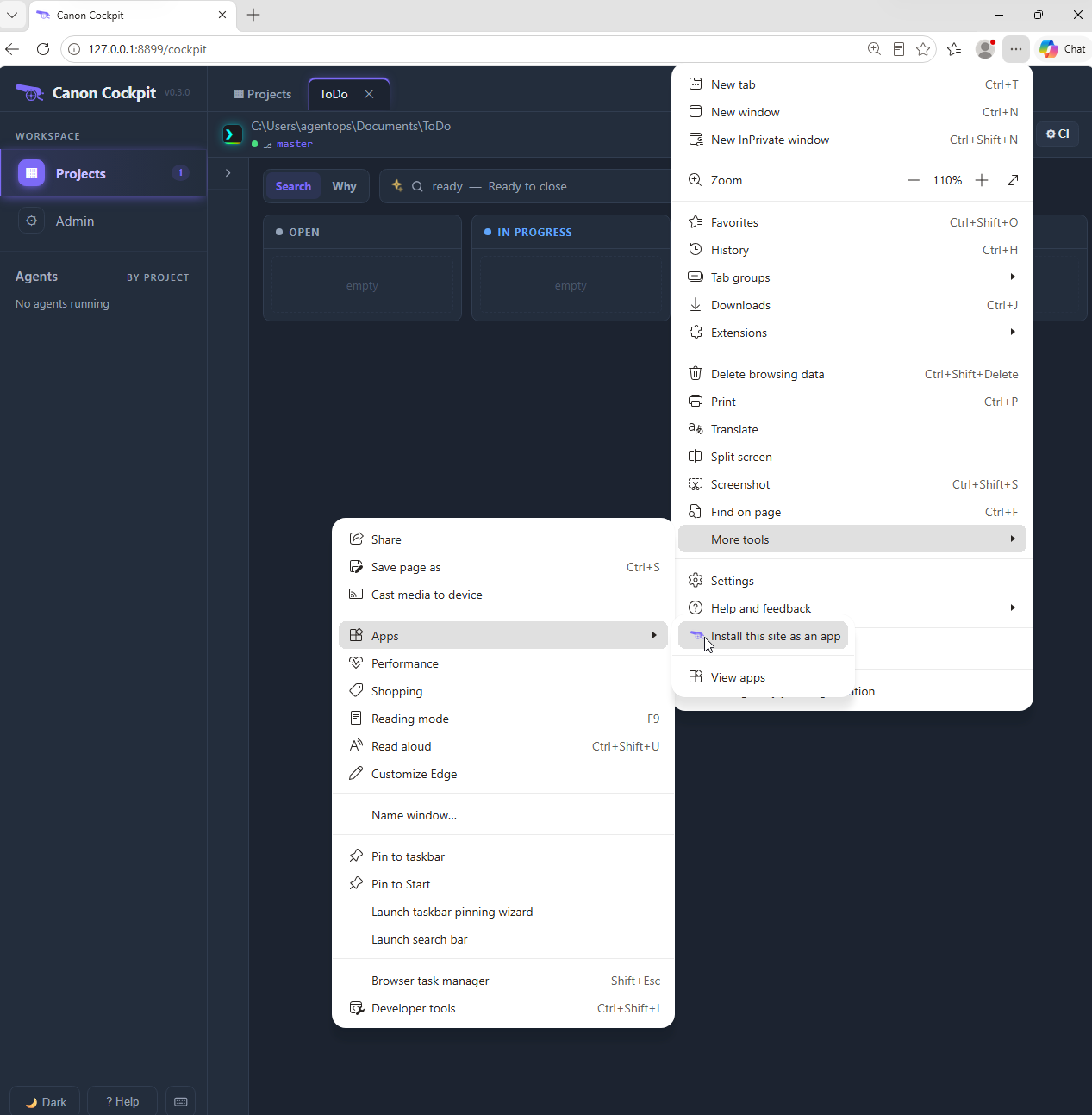
- Open the … menu at the top right, choose More tools, then Apps, then Install this site as an app.
- Edge says App installed and reads: "Canon Cockpit has been installed as an app on your device and will safely run in its own window. Launch it from the Start menu, Windows taskbar or your Desktop." Under Allow this app to it lists four options: Pin to taskbar and Pin to Start are ticked, and Create Desktop shortcut and Auto-start on device login are not. It has two buttons, Allow and Don't allow.
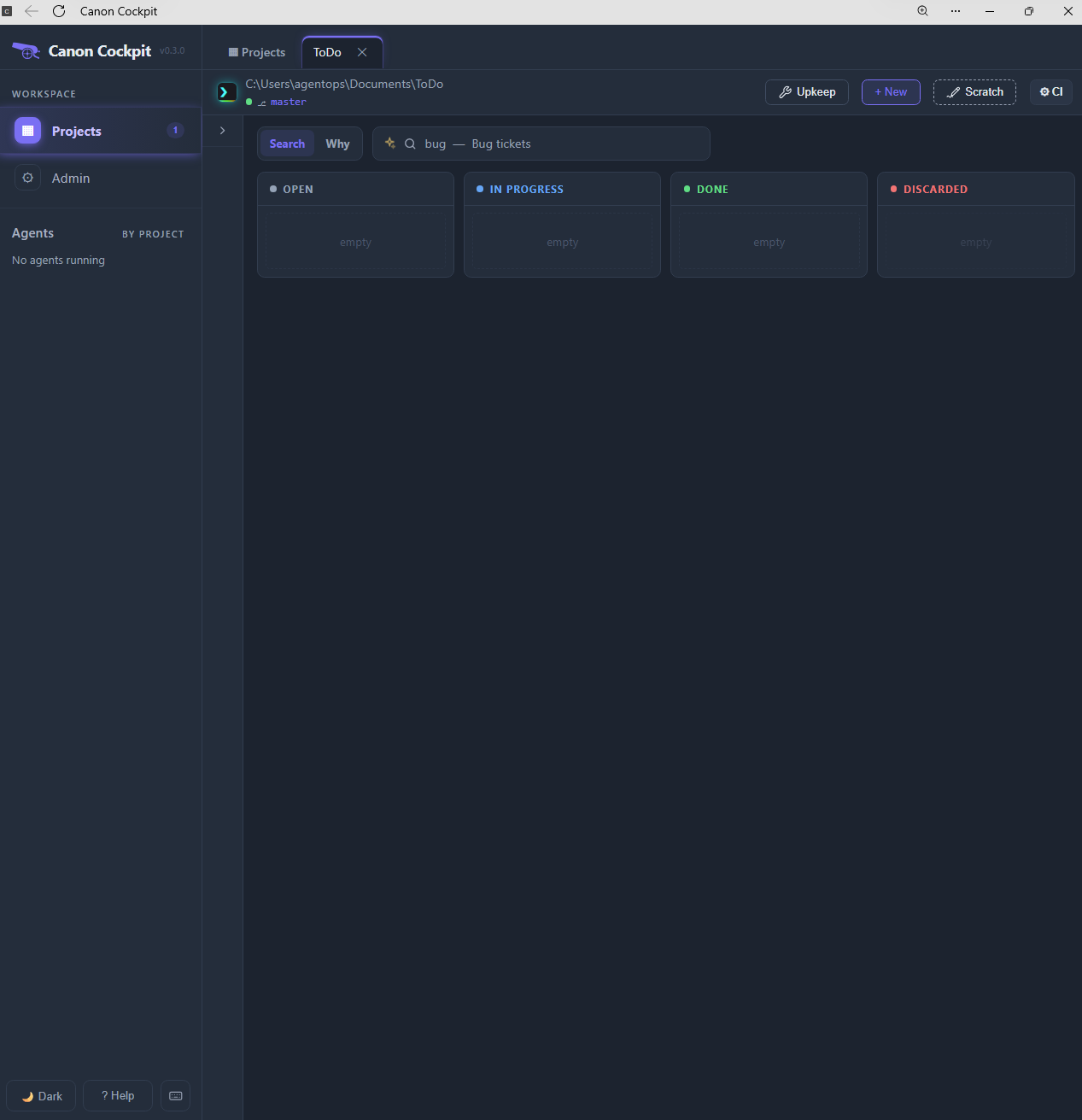
- The installed app runs in its own window, with no browser tab strip and no address bar.
On the taskbar, pointing at the app's button shows the label Canon Cockpit.
With canon not running, the app's title bar reads "Canon Cockpit - 127.0.0.1" and the page says "127.0.0.1 refused to connect.", with the code ERR_CONNECTION_REFUSED and a Refresh button.
Safari on a Mac
This was tried in Safari on a Mac.
- With canon running, open the Cockpit in Safari.
- Choose File, then Add to Dock….
- Safari shows an Add to Dock dialog with the name Canon Cockpit and the address
http://127.0.0.1:8899/cockpit. It reads: "An icon will be added to your Dock so you can quickly access this website." It has two buttons, Cancel and Add. - In the Dock, the icon shows the Cockpit's cannon mark and the label Canon Cockpit.
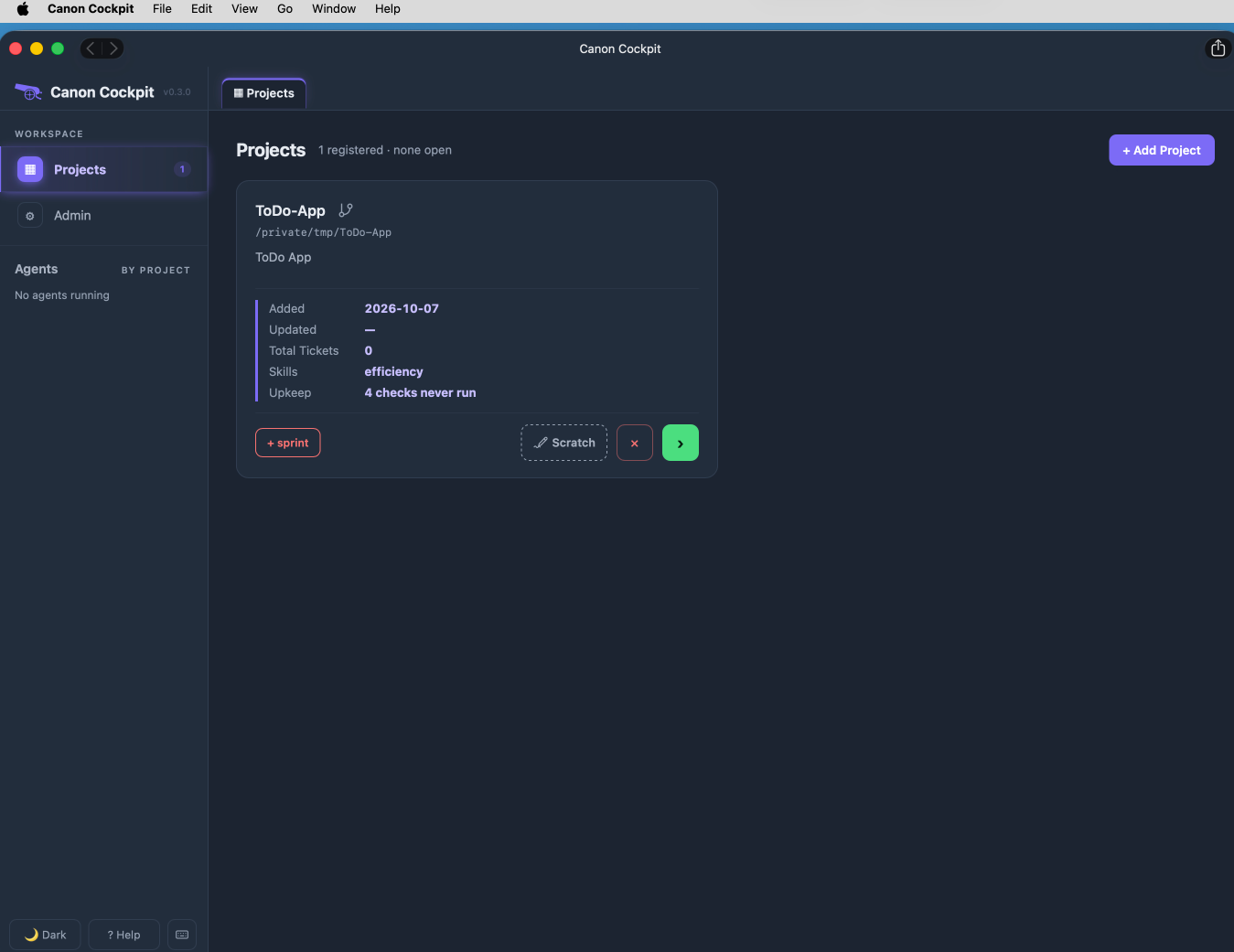
- The installed app runs in its own window, with no tab strip and no address bar. Its title bar reads Canon Cockpit and has back and forward buttons and a share button.
The app needs canon to be running first. With canon not running, the Mac app shows "Canon Cockpit Can’t Connect to the Server" and says: "Canon Cockpit can’t open the page “127.0.0.1:8899/cockpit” because Canon Cockpit can’t connect to the server “127.0.0.1”." It has a button, Reload Canon Cockpit.
Edge's settings page for the app
Edge keeps a settings page for the installed app. It shows the buttons Open, Clear cookies, Pin to taskbar, Pin to Start, Create Desktop shortcut and Uninstall, and a toggle for Auto-start on device login, which was off. Under Permissions it says "No permissions set."
The "not secure" message
In the app's information popup, Edge showed "Your connection to this app isn't secure". The Cockpit's address starts with http://, not https://. The Cockpit listens only on 127.0.0.1, which is your own machine, and it turns away any request whose host is not 127.0.0.1 or localhost.