Quick start
From a fresh machine to a closed sprint in six steps. You need Git (on Windows the installer offers to install it) and one of Claude Code, Pi or Copilot CLI.
1. Install
On macOS or Linux:
curl -fsSL https://getcanon.dev/install.sh | bashOn Windows 11, in PowerShell (no WSL and no git clone needed):
irm https://getcanon.dev/install.ps1 | iexOpen a new terminal afterwards so canon, sprint and tkt are on your PATH.
If Git for Windows is missing
canon's tools run in Git Bash, which comes with Git for Windows. If the Windows installer does not find it, it stops and asks first:
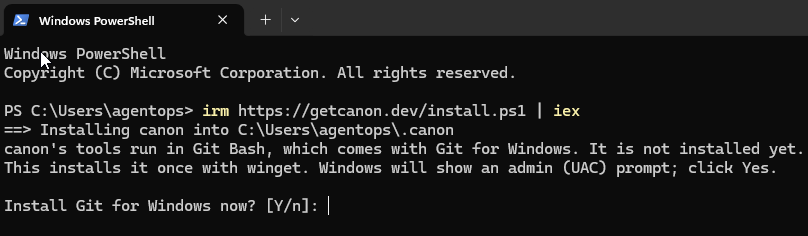
The message reads:
canon's tools run in Git Bash, which comes with Git for Windows. It is not installed yet. This installs it once with winget. Windows will show an admin (UAC) prompt; click Yes.
Install Git for Windows now? [Y/n]:
Answer Y. If you answer n, nothing is installed and the folder ~\.canon is not created. The installer prints the Git for Windows download link and the command to run again once Git is installed. After Y, Windows asks you to approve the change:
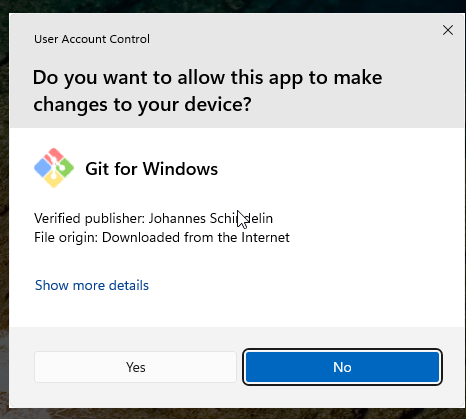
Git's own setup window then runs with a progress bar:
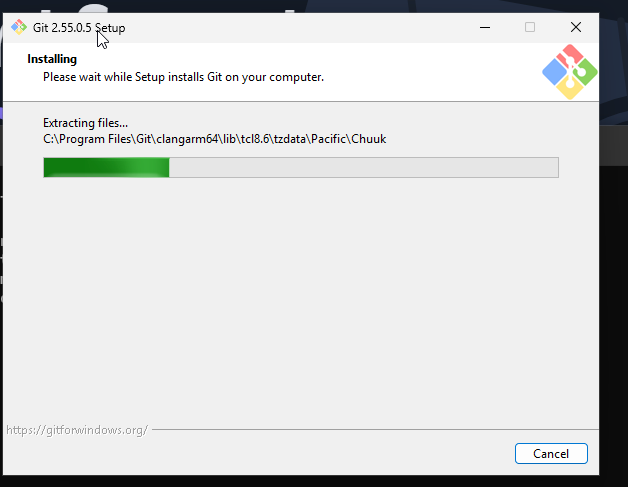
The canon install then carries on. It prints that you can run canon in this PowerShell window, and that for future windows you open a new one and run canon there. Its last line is canon installed successfully.
2. Open the Cockpit from a Terminal, Command Prompt or PowerShell window
canonThis opens the Cockpit at http://127.0.0.1:8899/cockpit. Canon prints its version, the port and the project it started in, then where that project's tickets are. The terminal stays busy while the Cockpit runs, so leave that window open.

The Cockpit opens on the Projects page. On a new machine it has no projects yet.
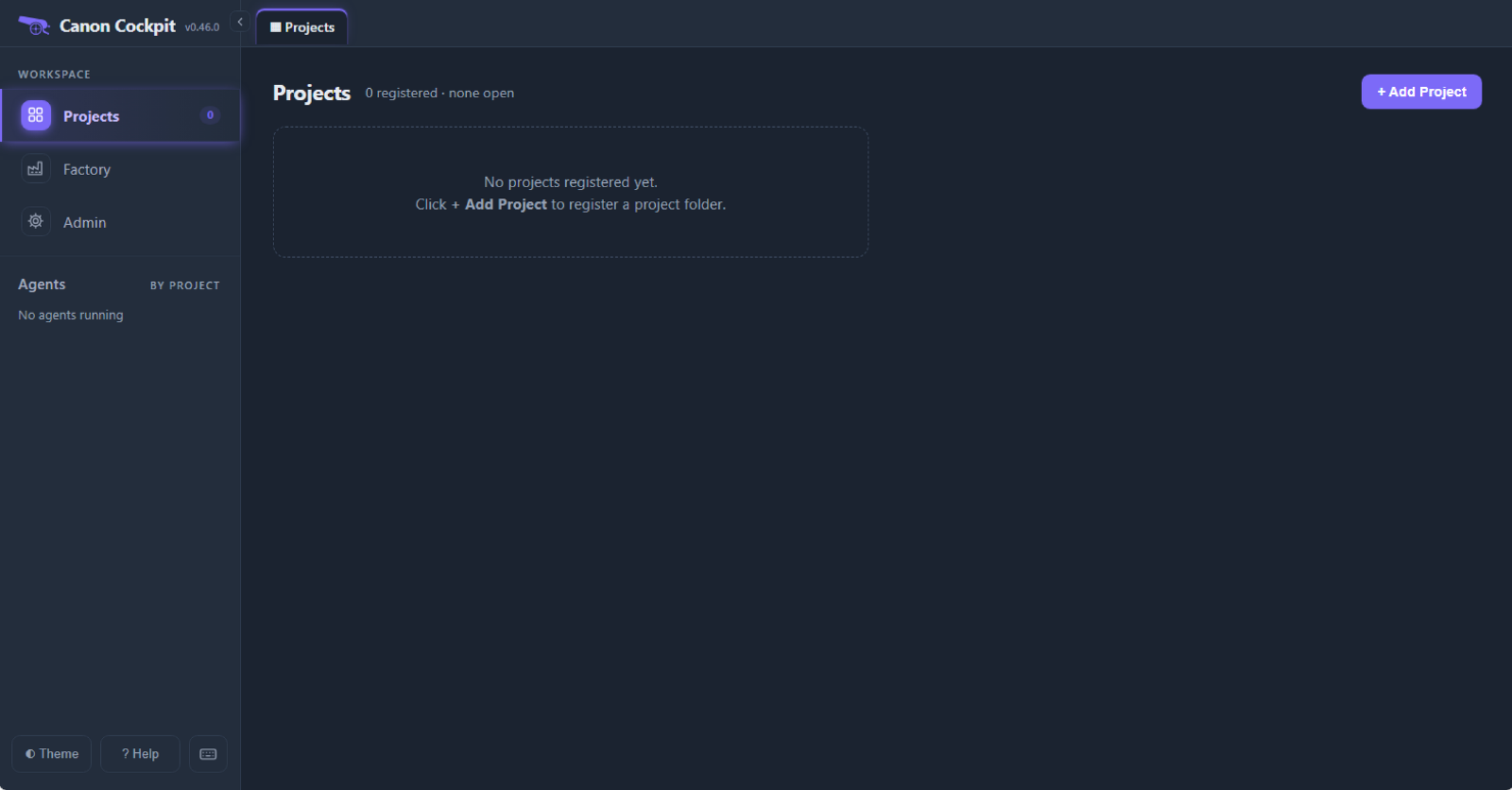
Run canon again while it is up and it does not start a second Cockpit. It prints The Cockpit is already running on port 8899. Opening it., opens the same address and returns your prompt.

3. Add a project
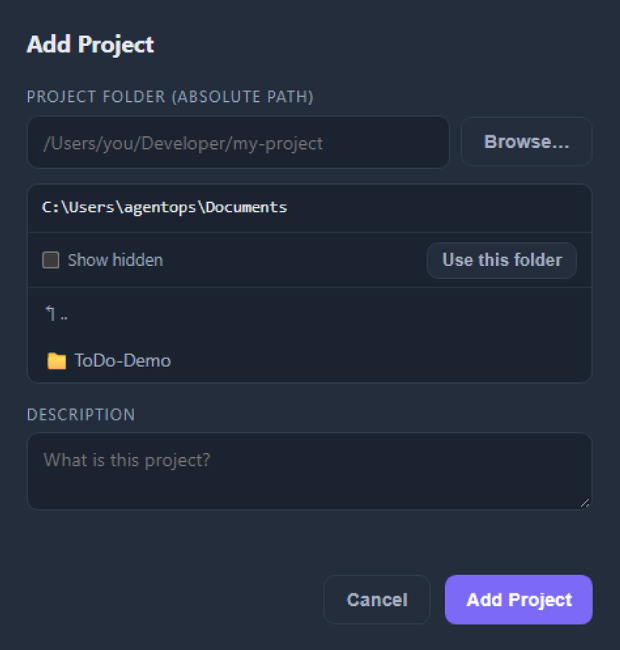
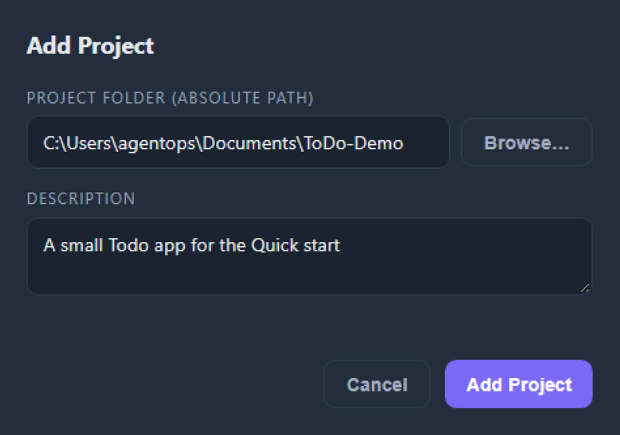
On the Projects page, click + Add Project. Type the folder path, or click Browse…, move to the folder and click Use this folder. A description is optional. Then click Add Project.
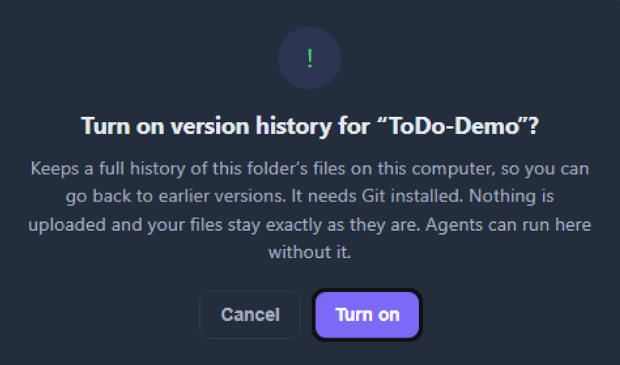
This guide uses git, so that the end of the sprint has commits to show. While git is not enabled for a folder, the git icon beside the project's name is grey. Click it and confirm Turn on: canon runs git init in the folder, writes a .gitignore if there is none and makes its first commit, chore: start tracking changes with canon. It needs Git installed, and nothing is uploaded.
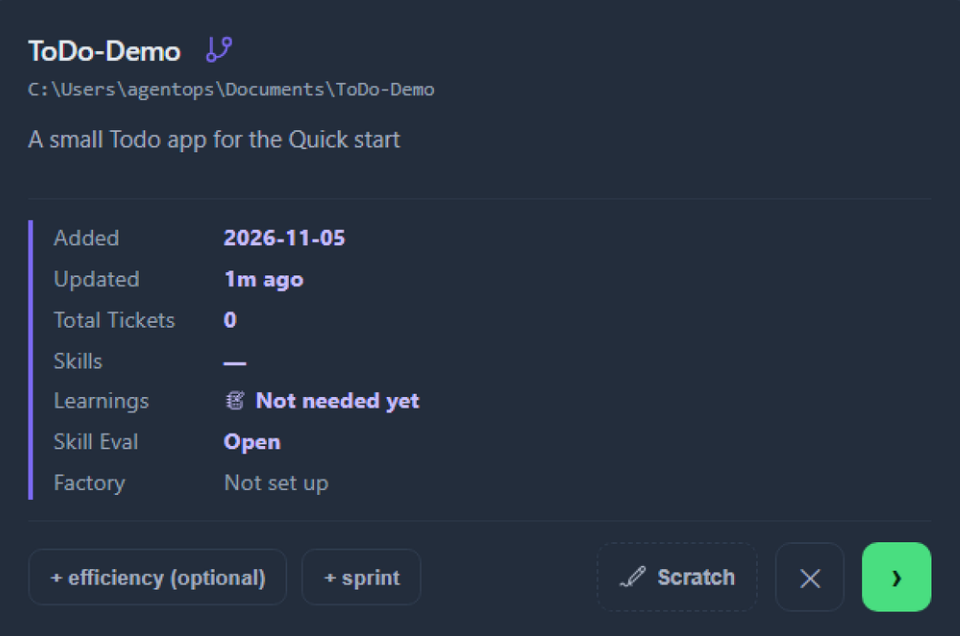
The icon turns blue and the card lists what is not registered yet: + efficiency (optional) and + sprint.
A folder without git works too: add it and run agents in it, and skip the icon. See Projects without git.
4. Register sprint and efficiency
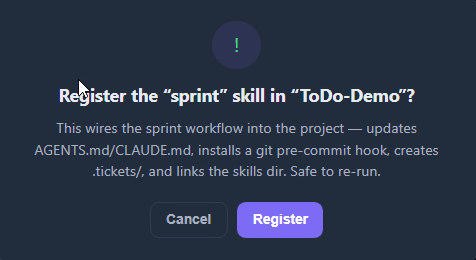
On the project's card, click + sprint and confirm Register. This wires the sprint workflow into the project: it updates AGENTS.md and CLAUDE.md, installs a git pre-commit hook (if the folder uses git), creates .tickets/ and links the skills folder. It is safe to run again. The card then lists sprint under Skills.
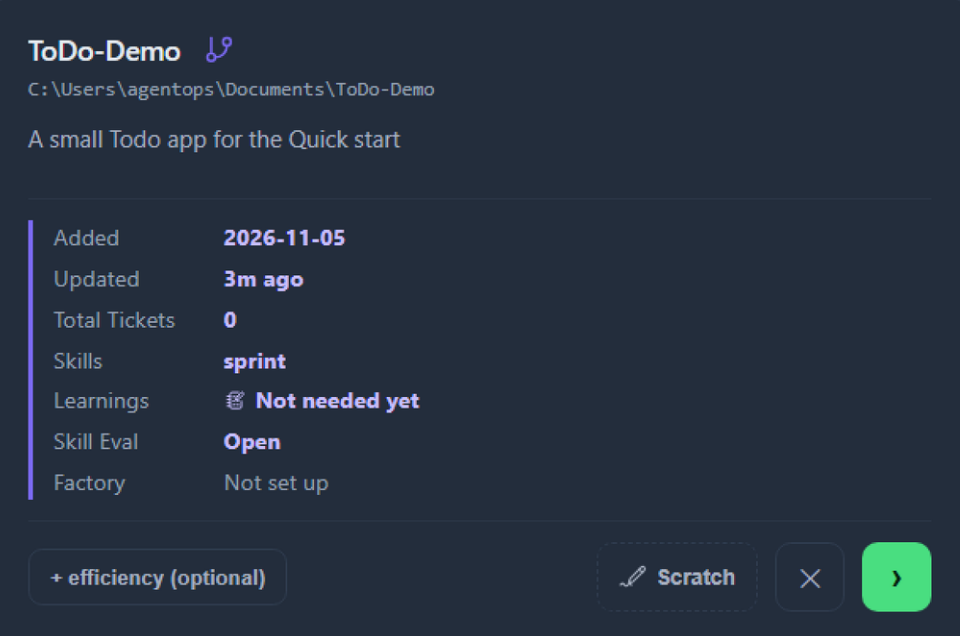
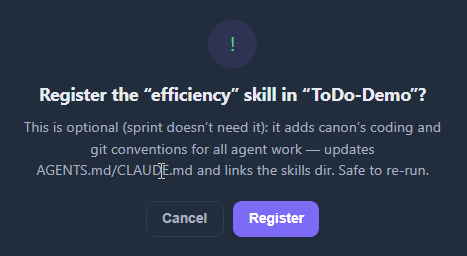
Register efficiency the same way, with the + efficiency (optional) button. Canon's own dialog calls it optional and says sprint does not need it. It is the standards file your agent reads in every session: coding rules, the format for review feedback, git conventions, triggers for what to do when it sees a problem, and token-saving habits. This guide registers it, so you see the prompt it adds in step 5.
sprint brings its helper skills (wrapup, learnings-sweep, promote-learnings) with it, so most projects need nothing else. See Registering skills.
Prefer the terminal?
From the project folder, run:
skills.sh add sprintskills.sh add efficiencyskills.sh statusThe same registration, with the same files written. It also adds ~/.canon/tools to your PATH if you agree to it.
5. Run your first sprint
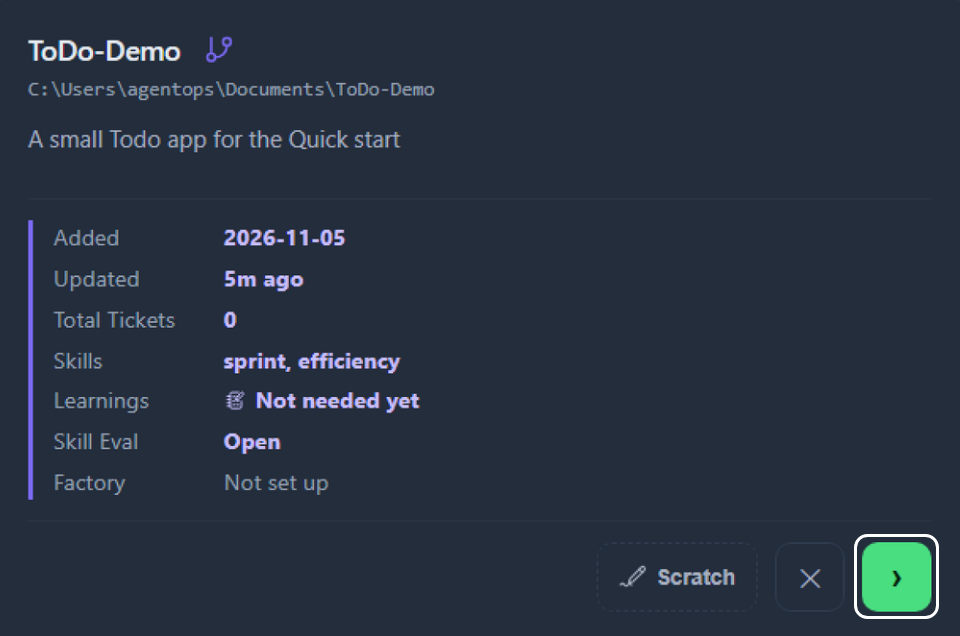
Click the green › button on the project's card to open its board. Then click + New, type what needs to be done and click Create →. Canon suggests the type from your title (here, Feature); the defaults are fine for a first ticket. The Options row has CI, Eval-only and Lite; leave them off, so this guide shows the full close.
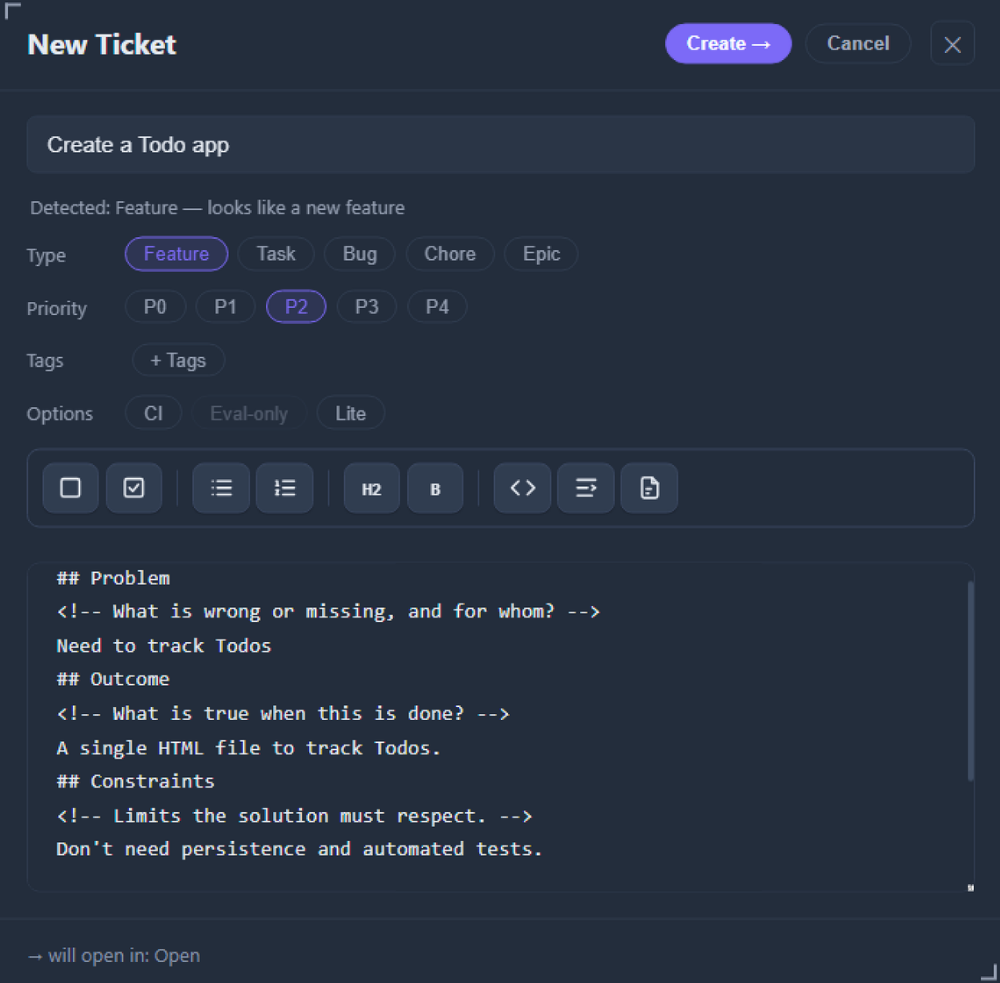
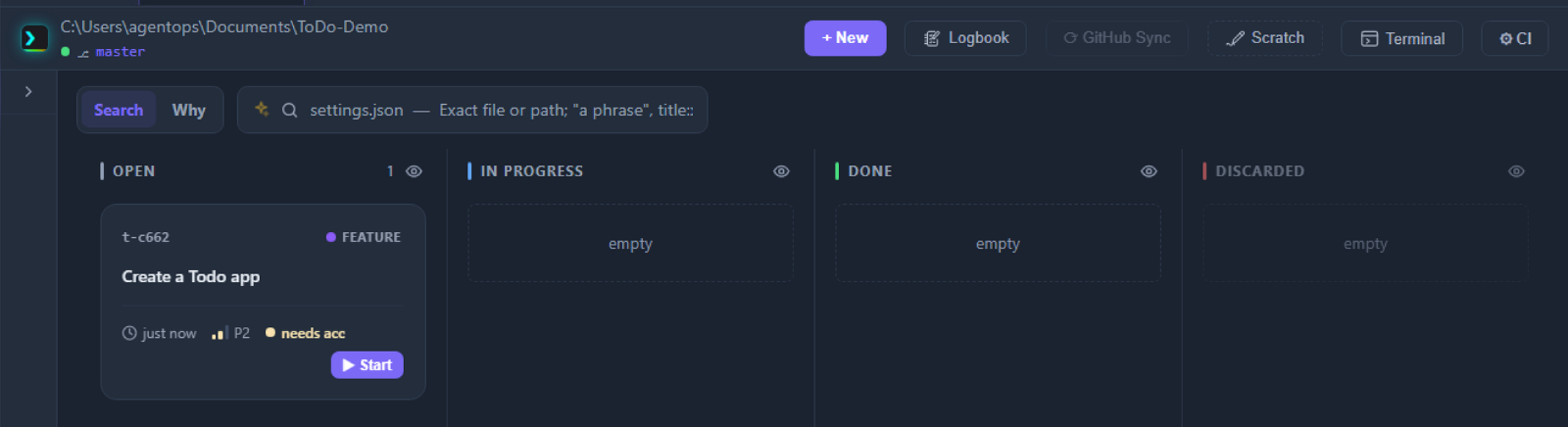
The ticket lands in Open. Click Start on its card. Its tab opens with a Worktree panel: leave it on Main checkout, choose your agent and press ▶ Start sprint.
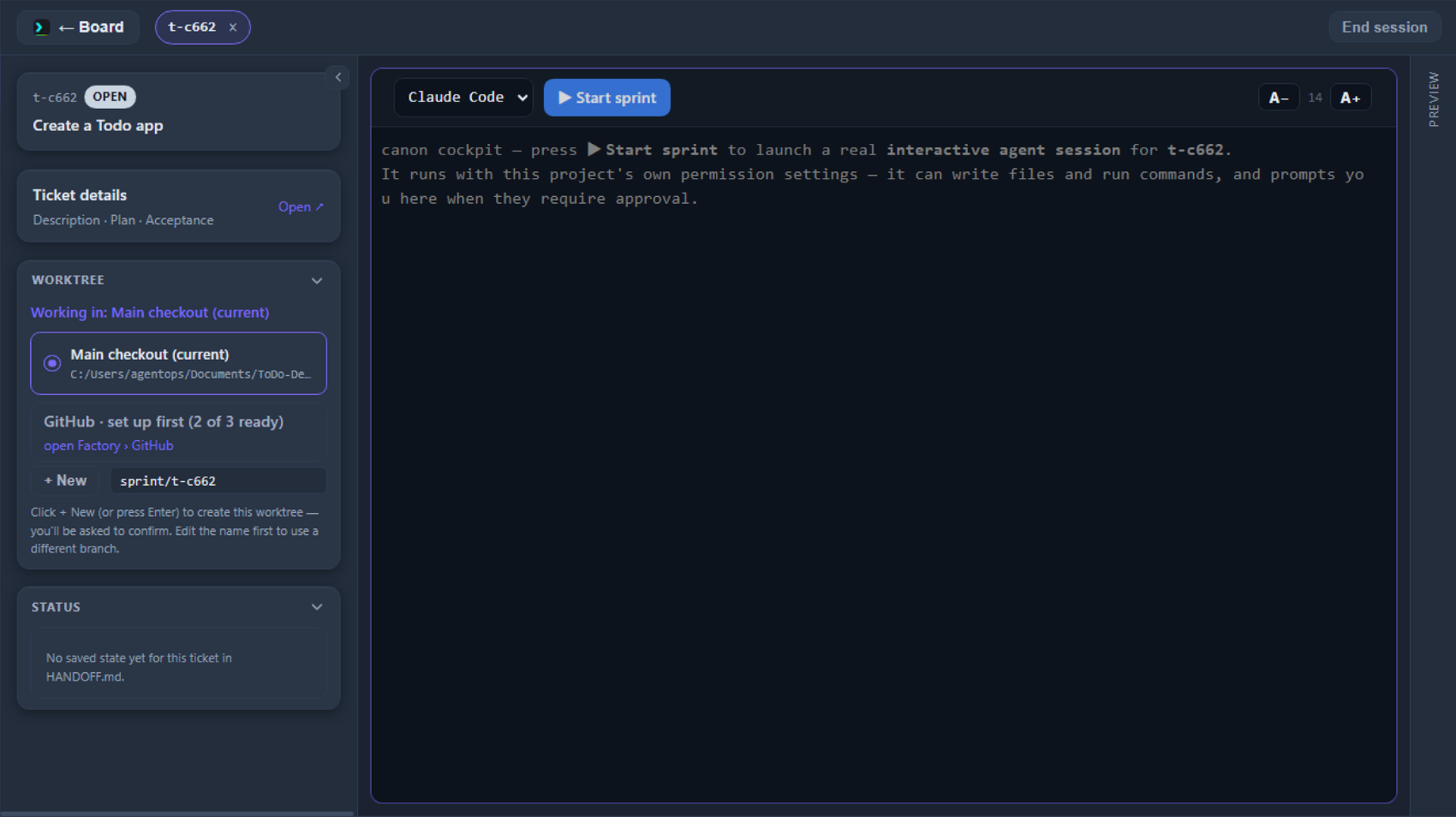
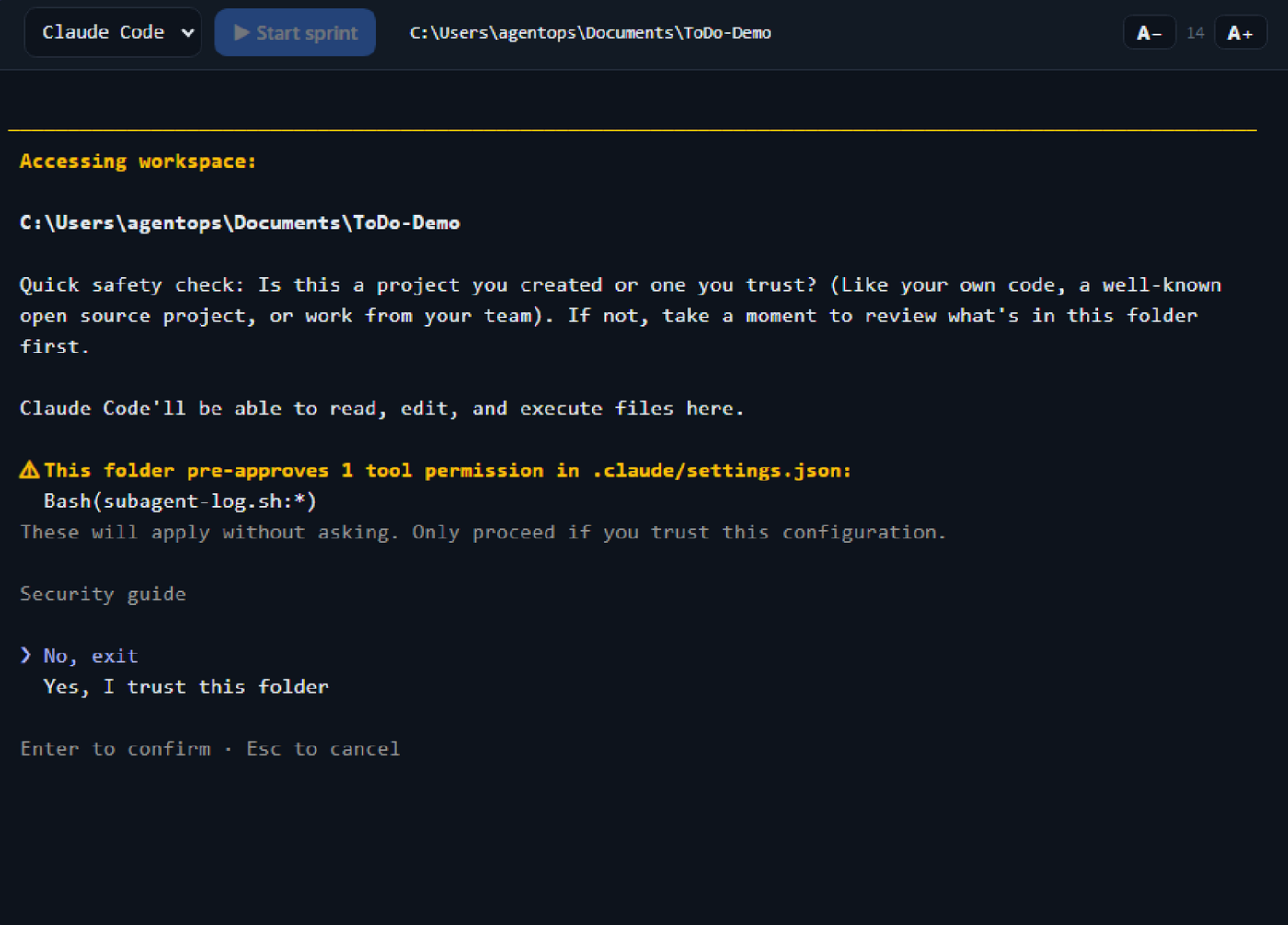
The first time Claude Code opens in a new folder it asks whether you trust it. No, exit is highlighted, so move to Yes, I trust this folder before you press Enter. It also notes one pre-approved permission in .claude/settings.json, Bash(subagent-log.sh:*): canon's own rule for logging review runs.
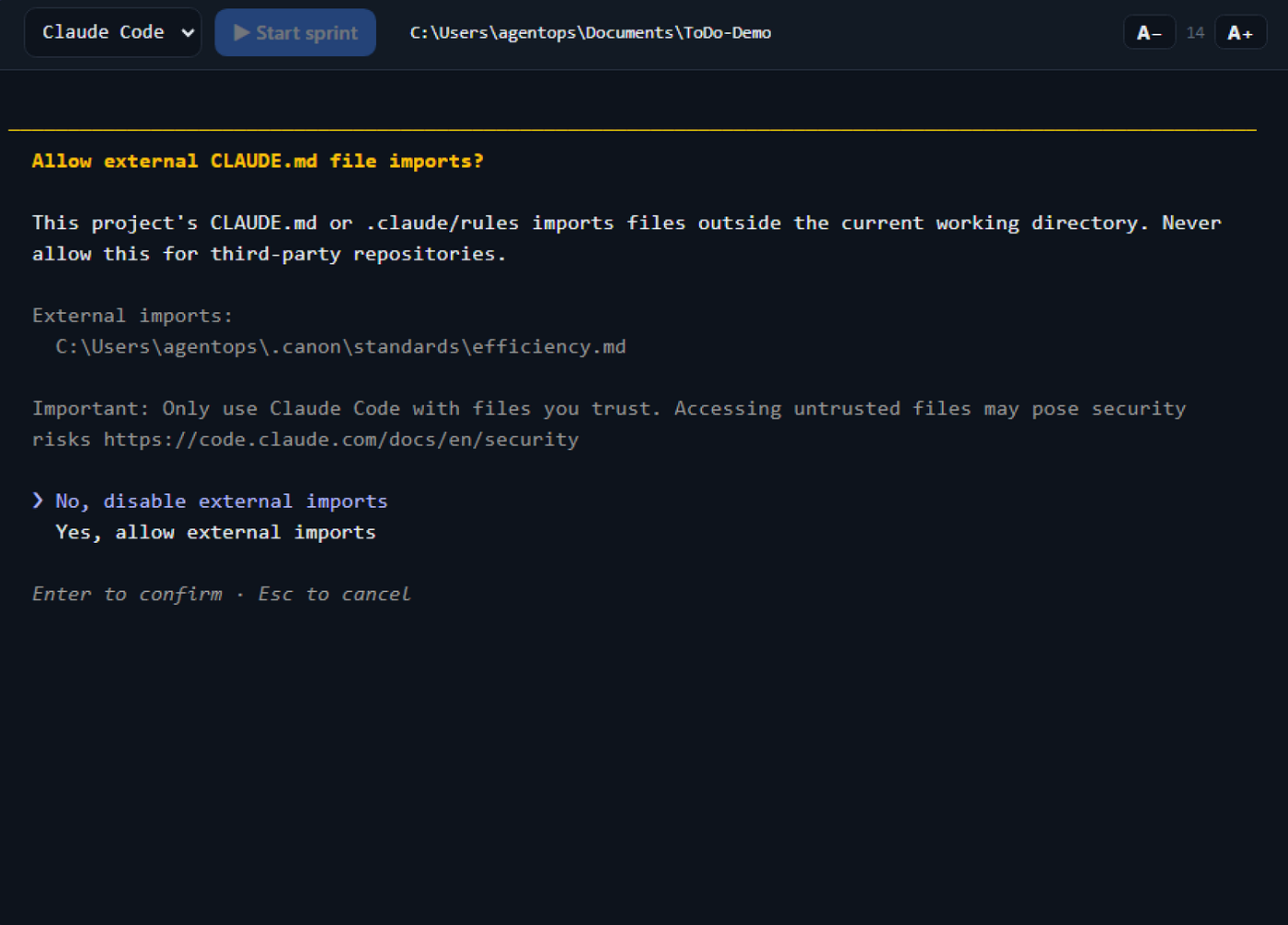
When efficiency is registered, Claude Code then asks Allow external CLAUDE.md file imports?. Your project's AGENTS.md imports canon's efficiency standard from .canon/standards/efficiency.md in your home folder, which is outside the project, and the prompt lists that file. Choose Yes, allow external imports and the agent loads the standard. With No, disable external imports the agent still starts, but without the standard, and nothing tells you.
Then sprint start runs. The agent reads your repo, writes its research.md, acceptance.md and plan.md, and stops with a brief: the goal, the tier, any DECISIONS.md entries that apply, the files, the acceptance criteria, the test plan and any open questions. In this run it also gave a short perspective check from the user's, security's and architecture's side. It ends by asking Shall I proceed?, and nothing is built yet.
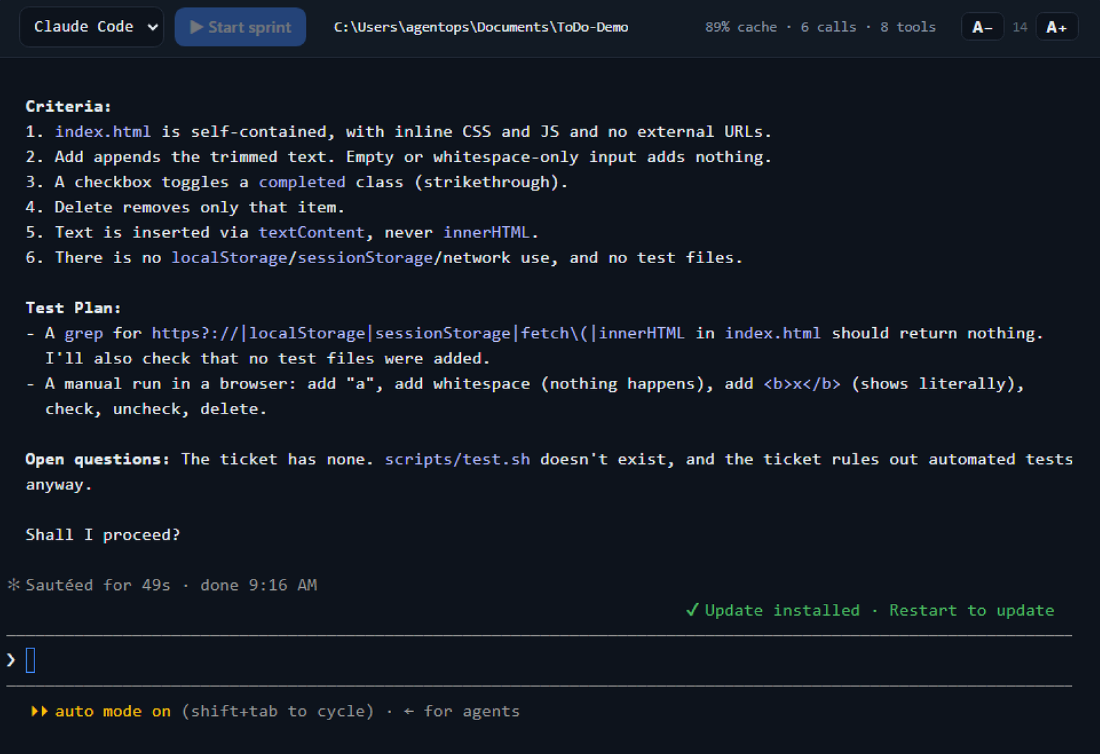
The strip above the terminal, 89% cache · 6 calls · 8 tools, counts what the session has done so far. Only Claude Code sessions show it:
- cache: the share of the session's input tokens that were read from Claude Code's cache: cache-read tokens ÷ (input + cache-creation + cache-read tokens), rounded down.
- calls: the replies the model has sent, each counted once.
- tools: the tool uses in those replies, each counted once.
- sub: how many sub-agents the session has started. It appears only when there is at least one, which is why the picture above has none. A sub-agent's calls and tools also count in the other three numbers.
Canon reads the figures from the session's own Claude Code transcript and refreshes them about every 5 seconds. They are not saved anywhere: after a restart, canon counts the transcript again.
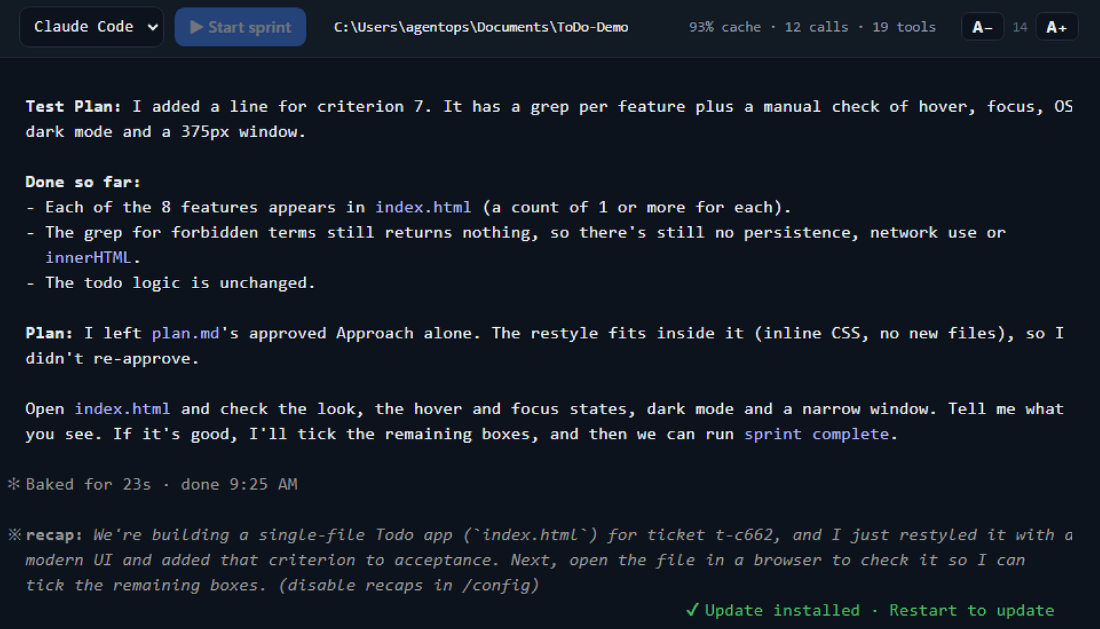
Tell the agent to go ahead (or what to change). It ticks the sign-off box in plan.md, builds and tests. In this run it then stopped and asked for a browser check: open index.html and look at the look, the hover and focus states, dark mode and a narrow window, then tell it what you see, and it would tick the remaining boxes once it looked good. The app had been restyled during the build, so the acceptance list had grown from six criteria to seven.
When you ask for sprint complete, the agent first asks you to confirm the close. Then a fresh reviewer and, after it, a fresh evaluator, with no memory of the build, check the work. A failing evaluator blocks the close. See Sprint and gates.
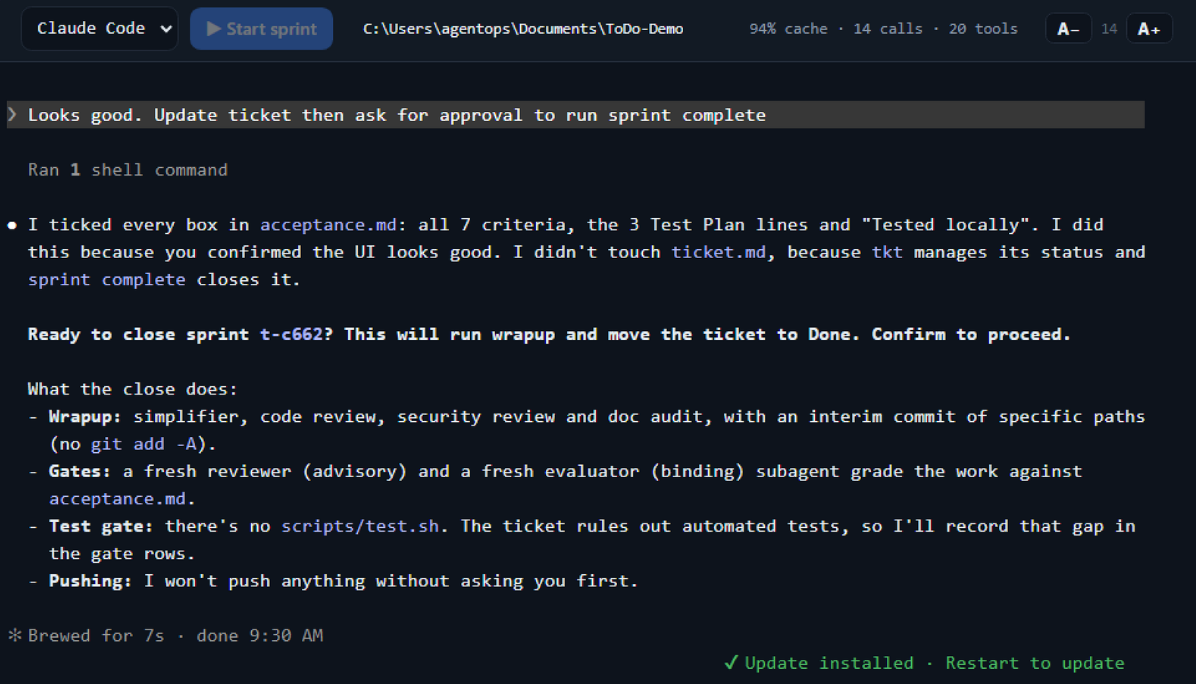
The checks read committed changes, so before them the agent commits the sprint's work if it is not committed yet. When both pass, the ticket closes and the agent commits the closing docs. Anything else still uncommitted in the project stays that way, so commit it before you run a second ticket in its own worktree; see Working in worktrees. It also saves a lesson candidate; see Learnings. In this run the closing message reports Reviewer (advisory): YES, with nothing to act on. and Evaluator (binding): pass on all 7 criteria and 3 Test Plan items. At the end the agent asks whether to add a remote, and it does not push unless you ask.
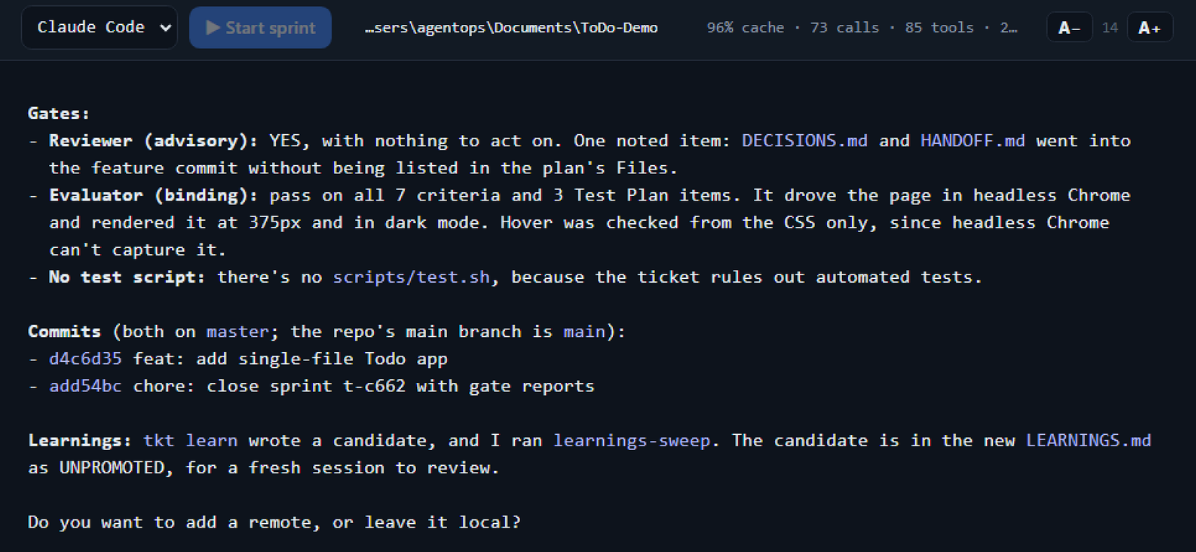
Prefer your own terminal? Open your agent in the project folder and ask it to run sprint start.
6. See the result
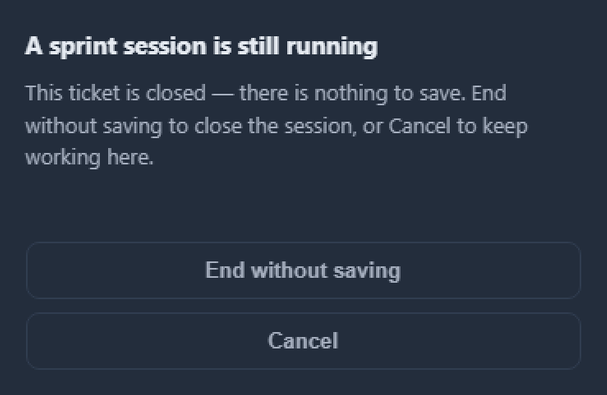
The sprint is closed, so end the agent's session: click End session at the top right of the ticket tab.

Then choose End without saving. The dialog says the ticket is closed and there is nothing to save. While a sprint is still open it also offers Save & End; see Agents and sessions.
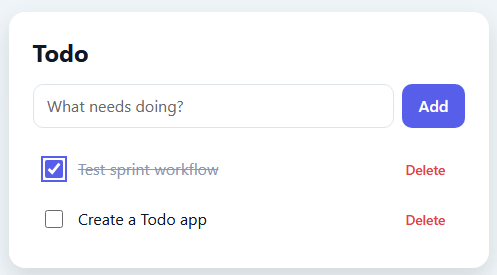
The agent built a working app in the project folder. Open index.html in a browser to try it.
Back on the board, the ticket is in Done. Open the side panel with the › at the left of the board. It shows the git state, the project's current focus from HANDOFF.md, the recent commits and a count of tickets by type and by status; Cockpit and board describes each part. The git line counts changed and untracked files; here it reads 6 modified. Click the ticket to read its plan, acceptance criteria, eval report and summary.
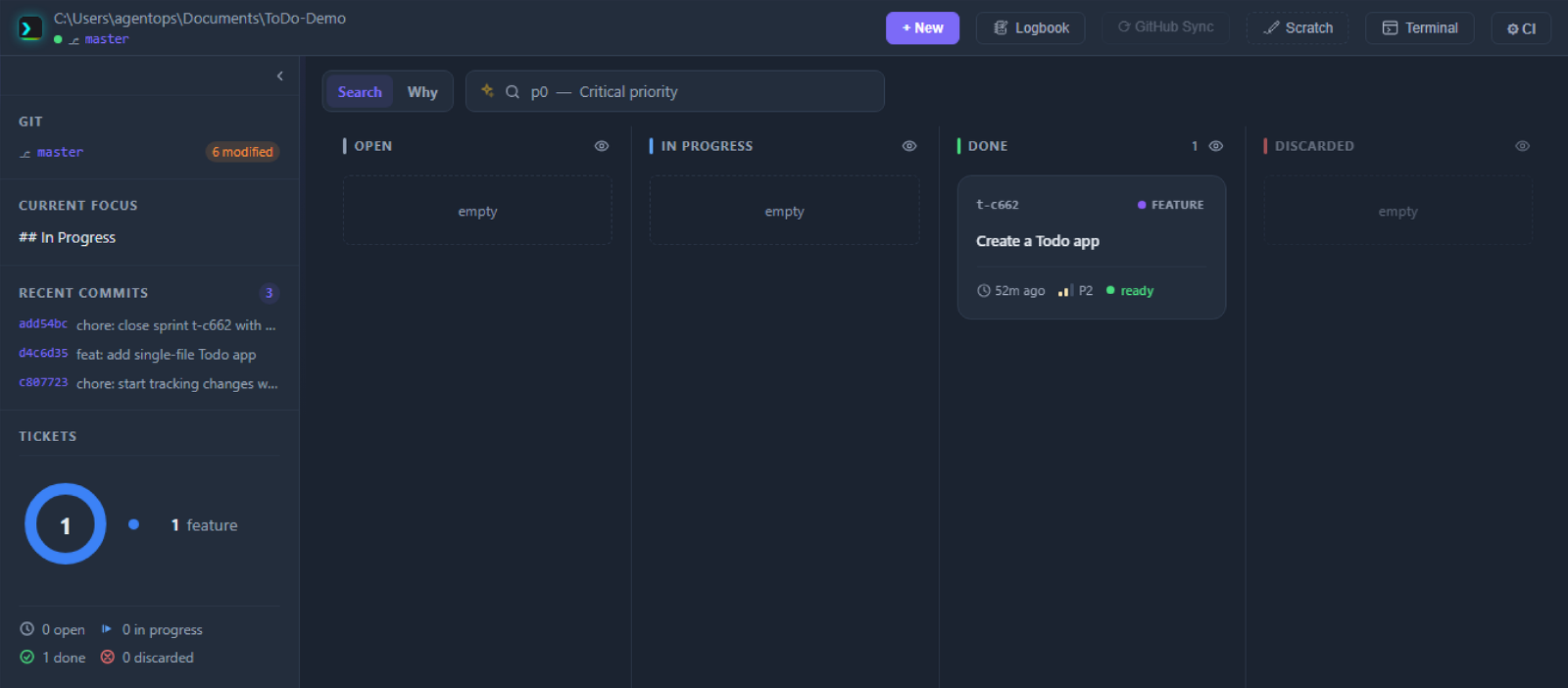
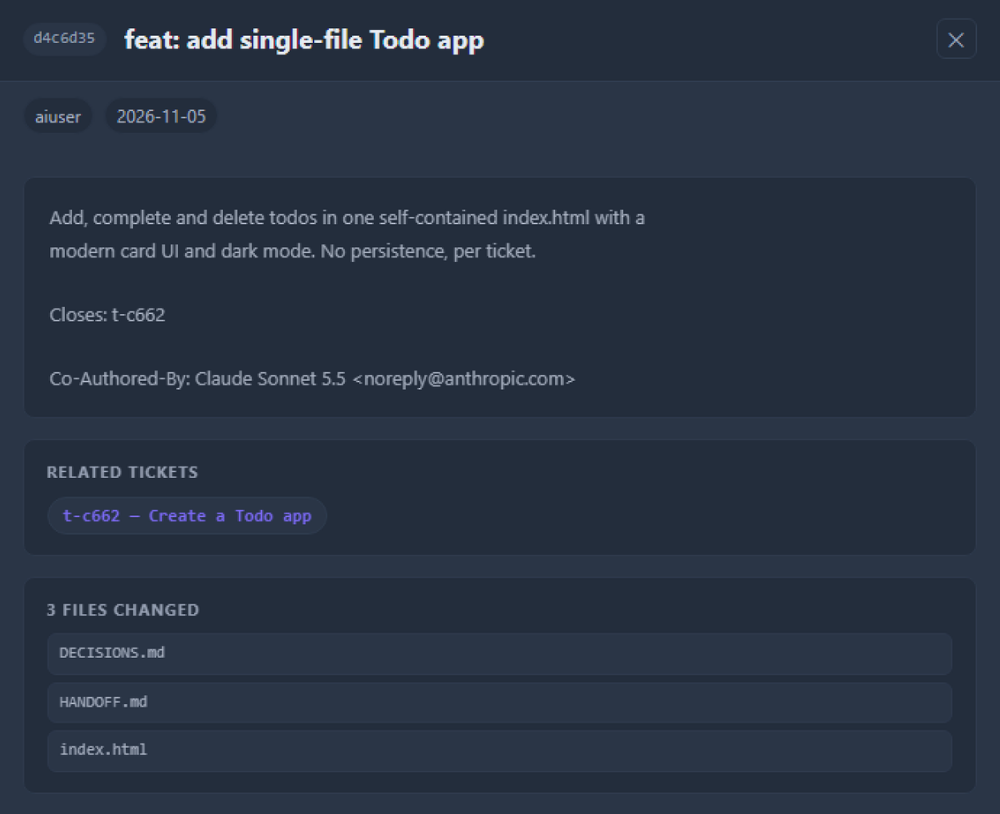
Click a commit in the panel to see what it changed: the message, the files and the ticket it closed.
Where next
To remove canon later, see Uninstall canon: it starts with a dry run that changes nothing.