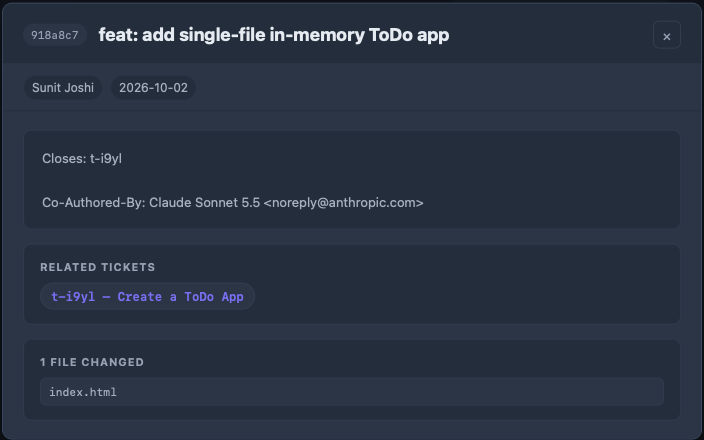
Cockpit and board
The Cockpit is the window canon opens. Its sidebar lists three pages: Projects, Factory and Admin. Projects lists every folder you have added; each project opens into a board of its tickets. Factory holds a project's GitHub setup. The board is local: it reads your project's .tickets/ folder and git log, with no account and no hosted server of its own. To see it in its own window, without the browser's tab strip and address bar, see Open the Cockpit as an app.
A project card
Each card shows the project's name, its path and what canon knows about it: when it was added and last updated, how many tickets it has, which skills are registered, and its live and stopped agent sessions (those rows appear only when there are some). The Learnings row says how many lessons wait for /promote-learnings and when the sweep last ran (2 to promote · swept today), None to promote when all are handled, or Not needed yet when the project has none; click it to open the project's Logbook, and Skill Eval checks a skill folder in the project. The Factory row reads GitHub ready · agentic off, GitHub needs setup · agentic off, Not set up when the project has no GitHub origin, or GitHub · could not check when the checks did not answer; click it to open the project's GitHub setup on the Factory page. The git icon beside the name is explained on Projects without git.
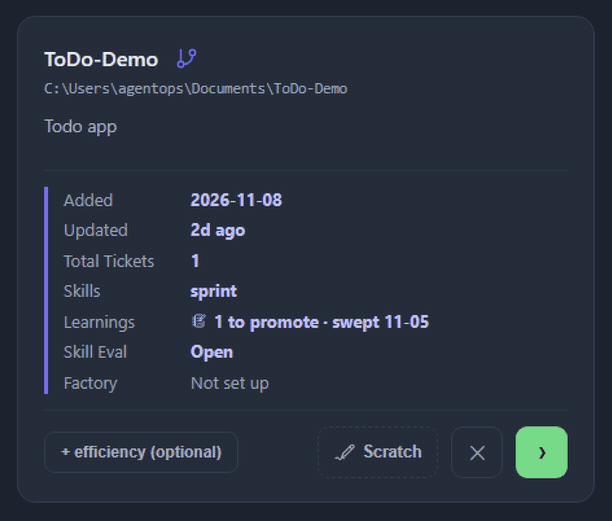
The green › button opens the project's board. Scratch starts a plain agent session in the project with no ticket and no sprint; see Agents and sessions.
Theme
◐ Theme at the bottom of the Cockpit's sidebar sets the look of the Cockpit and every open board. Pick a mode (System follows your computer's light or dark setting) and a theme for it: Canon Dark and Canon Light, six built-in themes (Catppuccin Mocha and Latte, Tokyo Night, Nord, Dracula, Gruvbox Dark), or one of your own. Hover a theme to preview it; click to keep it. See Themes for the full list and Custom themes to make your own.
The board
A board has four lanes: Open, In Progress, Done and Discarded. Across the top are + New, Logbook, GitHub Sync, Scratch, Terminal and CI, with the search box on its own row above the lanes. GitHub Sync turns open issues labelled canon into tickets, after a preview; it stays greyed out until the GitHub checks on the Factory page pass. The whole path, from a ticket to a merged pull request, is in GitHub and cloud sessions.
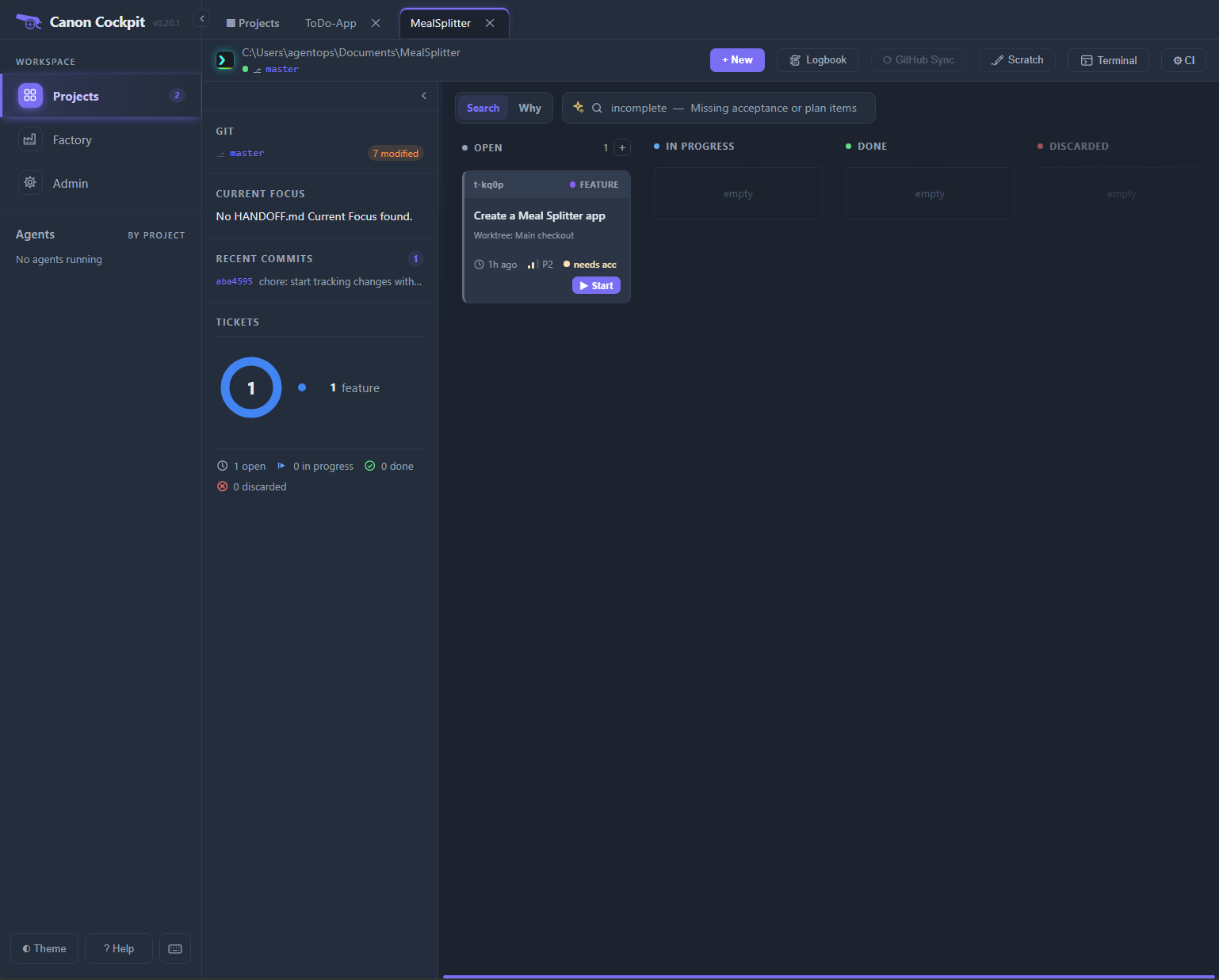
An open ticket's card has a ▶ Start button, and one in progress has ▶ Resume. It switches the board into the Cockpit, where the agent runs in an embedded terminal.
Logbook
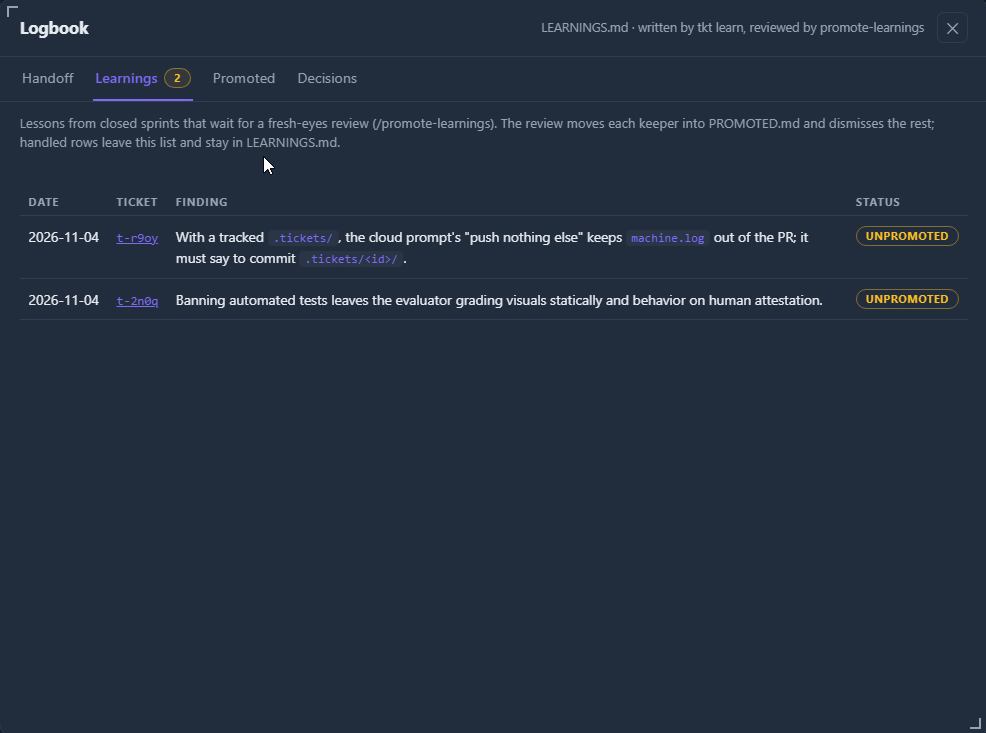
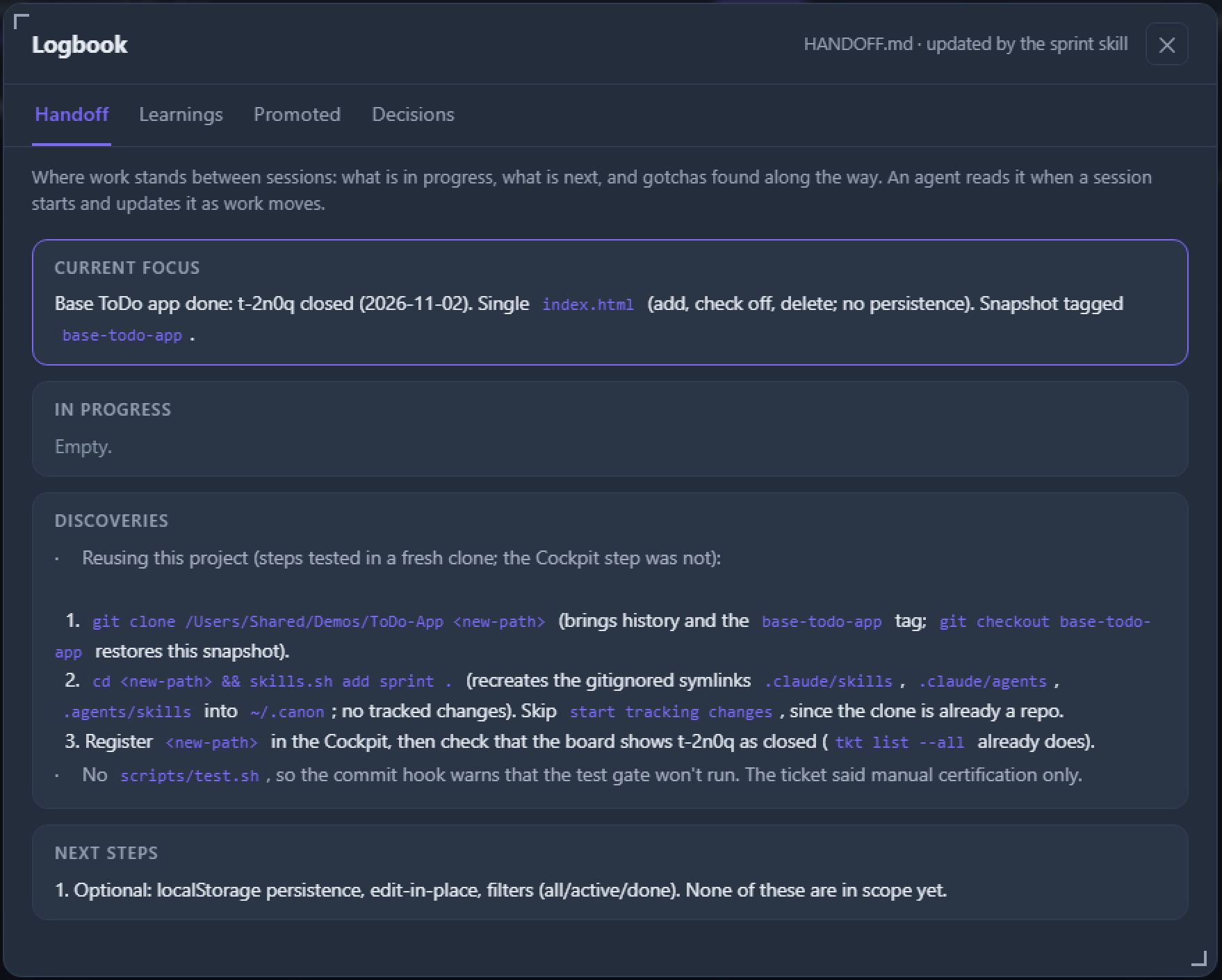
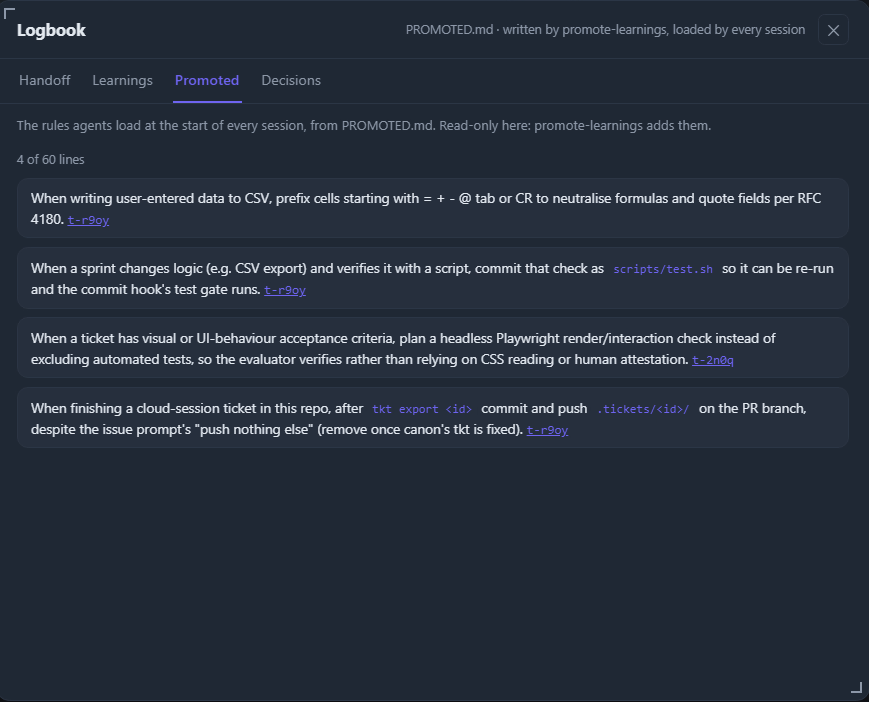
Logbook, on the board or on the project card's Learnings row, opens a read-only window over the project's notes. Ctrl+. then k opens it for the project on screen (see Keyboard). It has four tabs:
- Handoff shows the sections of
HANDOFF.mdas cards. - Learnings lists the
LEARNINGS.mdrows still waiting for review, with a badge counting them; it saysNothing waiting for reviewwhen there are none. Promoted and dismissed rows leave this list and stay in the file. - Promoted shows the rules in
PROMOTED.md, with a link to each ticket a rule names, and how many of its 60 lines are used. A project withoutPROMOTED.mdsees the rows marked promoted inLEARNINGS.mdandLEARNINGS-archive.mdinstead. - Decisions shows
DECISIONS.mdnewest first, up to the newest 150.
Click a ticket id to open that ticket. File text is shown as text, and images in it are not loaded. A missing file, a symlink or a file over 4 MB says so instead. See Learnings for where these lessons come from.
Terminal
Terminal opens a restricted prompt in the project, with no Start button and no agent. From the keyboard, Ctrl+. then m opens it as a pane below the tab you are on, and M beside it (see Keyboard). The Terminal button in the board's header opens it as its own session instead of a pane.
It runs a short list of commands: ls and cat inside the project, pwd, clear, help (or ?), the read-only tkt commands (current, ls, show, why, github-doctor, github-status), ten tkt commands that change a ticket or post to GitHub the way the board's own buttons do (create, start, demo, close, reopen, archive, send-issue, import-issue, open-pr, import-results), su and exit. There are no pipes, redirects or globs. cat refuses .env* files, .git/, binary files, files over 1 MB and symlinks that leave the project. ls, cat and tkt show one screenful at a time.
su gives you a full shell for 10 minutes, with a warning at 9:30. After that you drop back to the restricted prompt. Starting and ending su is logged, and canon never sees your password.
On macOS and Linux:
- Type
suin the Terminal and press Enter. - Enter your account password when it asks. The prompt becomes your usual login shell in the project folder, with everything your account can do.
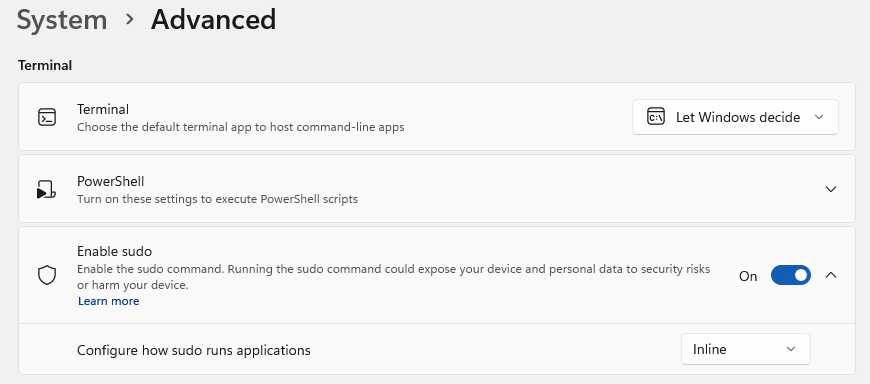
On Windows 11 (24H2 or later, with Git for Windows), switch sudo on first:
- In Settings, open System › Advanced, switch Enable sudo on and set how sudo runs applications to Inline, the mode we used, as in the picture.
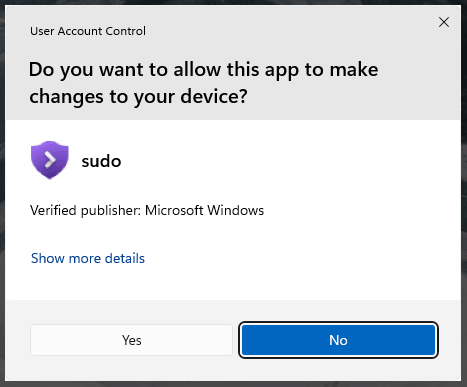
- Type
suin the Terminal. Windows shows its User Account Control prompt. - Accept it. The prompt becomes a Git Bash prompt in the project folder.
If su still says it is unavailable after you switch sudo on, sign out of Windows or restart it, then try again. su refuses when the Cockpit was started from an Administrator window. Where there is no such prompt, su says it is unavailable and starts nothing.
exit, or the end of the time, returns to the restricted prompt and ends what the shell started, except a program that starts a session of its own, such as a daemon, which keeps running. tkt merge-pr needs su, because it runs the PR's code on your machine.
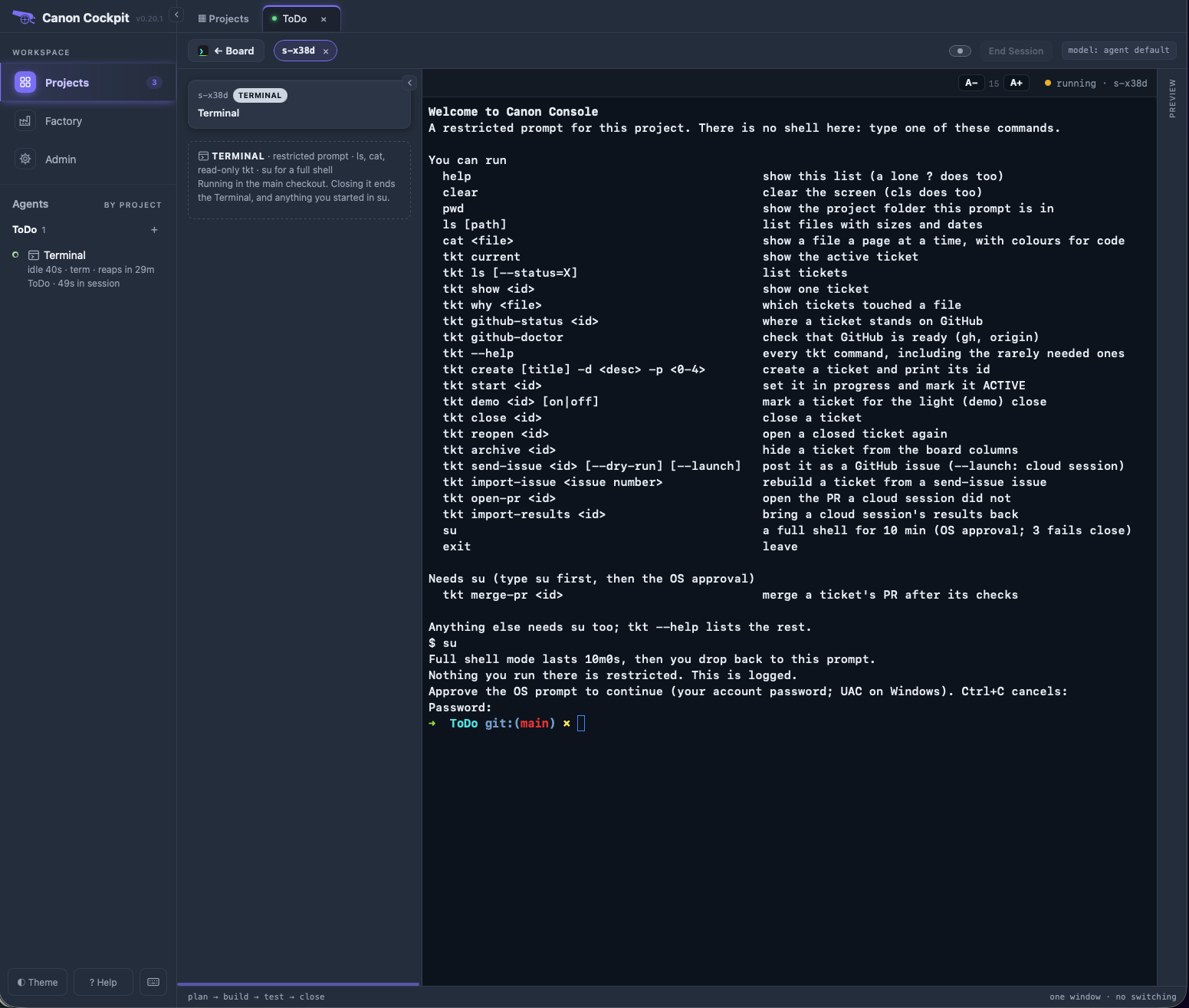
The Terminal is a convenience boundary, not a sandbox: a full shell after su can edit any file you can.
Create a ticket
+ New opens a form with a structured description template. The title suggests a type (feature, task, bug, chore or epic), and you can change the type, the priority and the description before pressing Create. The ticket is saved as .tickets/<id>/ticket.md, where your agent can read it straight away.
Find a ticket
Type in the search box to match a ticket's title, id, status, type, priority, description, document names or readiness label, such as plan incomplete. Matching tickets stay in their own lanes, so you keep the context of where they are. Press Esc or clear the box to see everything again.
Switch the control from Search to Why and enter a file path (or type why:path/to/file) to ask why a file exists. Canon scans git history, matches tickets and shows the decisions recorded in their plans.
Open a ticket
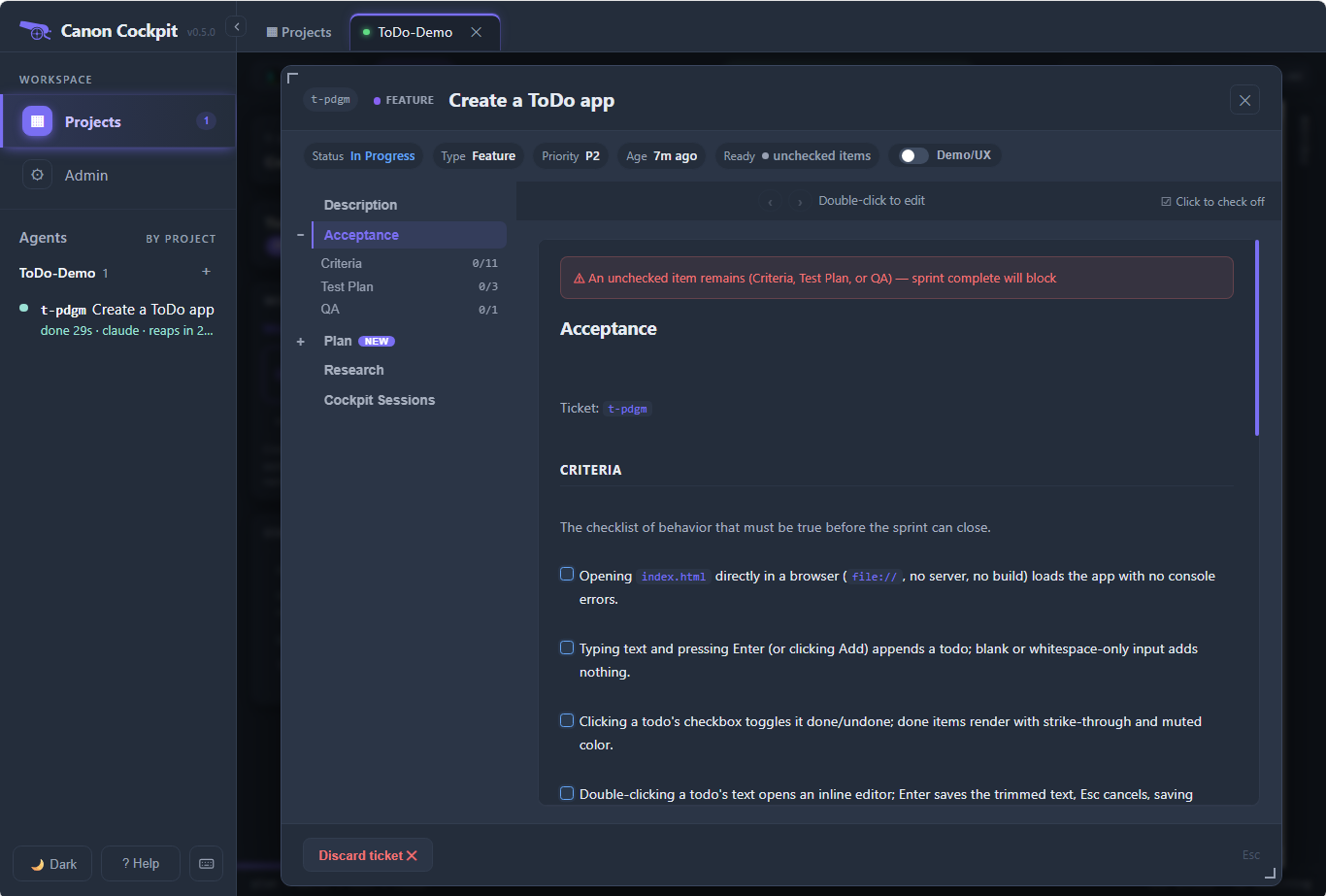
Click a ticket to open it. From a ticket's Cockpit tab, the Open ↗ link on its Ticket details card opens the same window over the Cockpit. The chips along the top show its status, type, priority, age and readiness, and its worktree when one was chosen, with the Lite switch (see Lite close). On the left is a tree of the ticket's documents: Description, Acceptance, Plan and Research, and Cockpit Sessions once the Cockpit has started a session for the ticket. The + or − beside a document folds or unfolds its headings, and Acceptance shows how many boxes are ticked under Criteria, Test Plan and QA. In a Cockpit tab, a small NEW badge beside a document marks one the agent has just written or changed. Cockpit Sessions is a log of the agent sessions the Cockpit starts for the ticket. While you are reading a ticket, the arrows above the document go to the previous or next ticket in the lane.
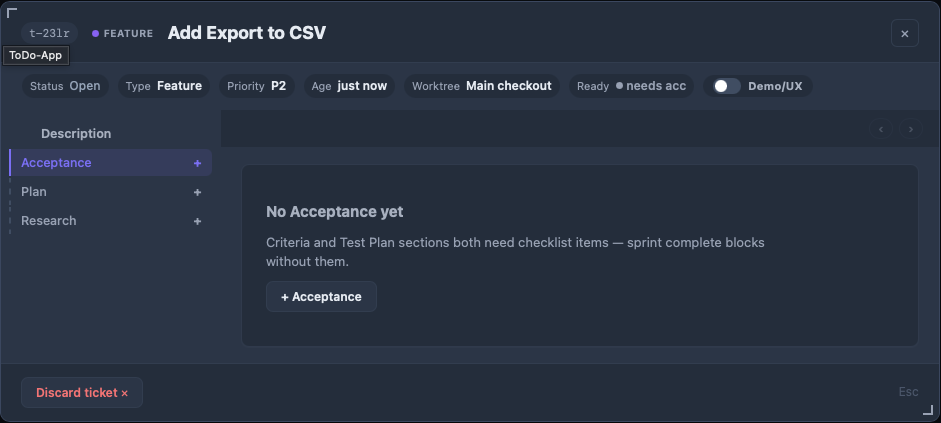
A ticket you have just created from the board has only a Description. Acceptance, Plan and Research show as dashed entries with a +. Click one and its page says it does not exist yet, with a button such as + Acceptance that opens the editor on a starter template.
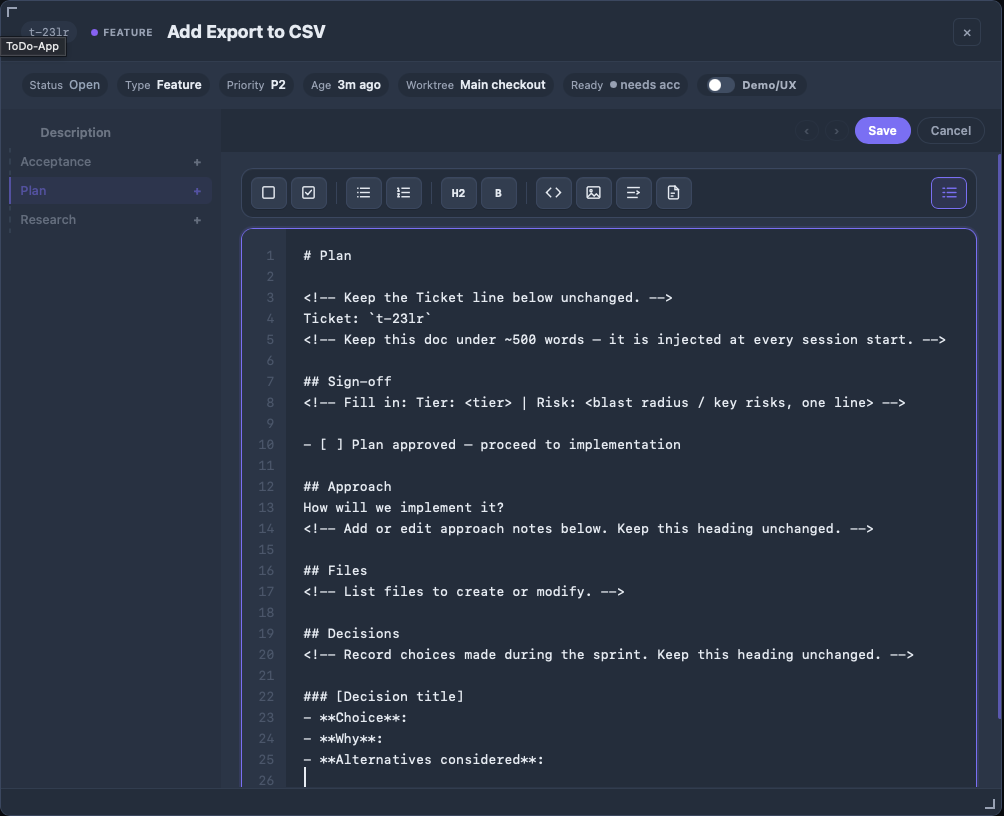
Double-click a document to edit it. The editor shows line numbers and a toolbar of Checkbox, Checked item, Bullet list, Numbered list, Heading, Bold, Inline code, Insert image, Scenario (Gherkin) and Scenario from .feature file. The Line numbers button at the right end shows or hides the numbers; long lines wrap either way. Save and Cancel sit at the top right.
An unchecked box blocks the close, and the window says so. Click a box to tick it. Drag the bottom-right corner to resize the window; Esc closes it. Closed and discarded tickets open read-only.
Each card also shows how ready its ticket is:
- ready (green): acceptance criteria and test plan are written, every box is checked, the plan has an approach and the sign-off is approved.
- unchecked items (red): there is a criteria and test plan, but a box is still unchecked, including the "Tested locally" box under QA.
- incomplete or plan incomplete (red): the Acceptance or Plan document is missing real content.
- needs acc, needs plan or needs signoff (amber): the next thing to add.
Click the indicator for a checklist. The board shows whether the boxes are checked, not whether they are true; that is for the agent and the evaluator (see Sprint and gates).
Drag a ticket between lanes
Dragging a card to Done is refused while any acceptance box is unchecked, and a toast says why. Dragging to In Progress without an acceptance document shows a warning but goes ahead. Any other move applies at once.
The side panel
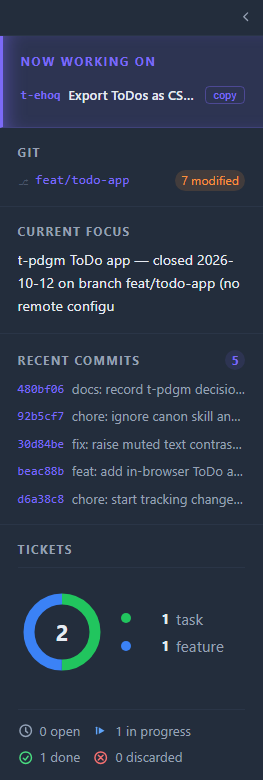
Beside the lanes is a side panel. While a ticket is in progress, Now working on lists it at the top; click it to open the ticket, or press copy to copy its id as a prefix to paste into a commit message. Below are the git branch with how many files are modified, the project's current focus from HANDOFF.md, the recent commits with a count, and Tickets: a donut of the tickets by type, with a count for each type in its own colour, and a line counting them by status. A project without git shows its changes instead of the git details; see Projects without git.
See what a commit changed
Click a commit in the side panel to see what it changed and which ticket it most likely belongs to, matched by the ticket id in the message or, failing that, by keyword.